
Double Pendulum Simulation
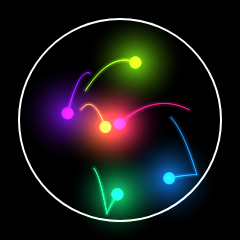
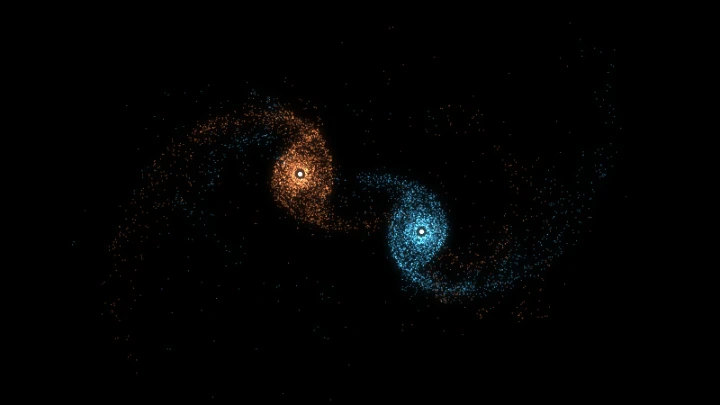
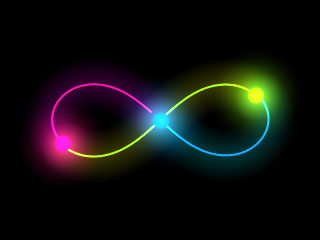
Create simulations of a double pendulum, a triple pendulum, or a pendulum with as many segments as you want, and download the animation videos.
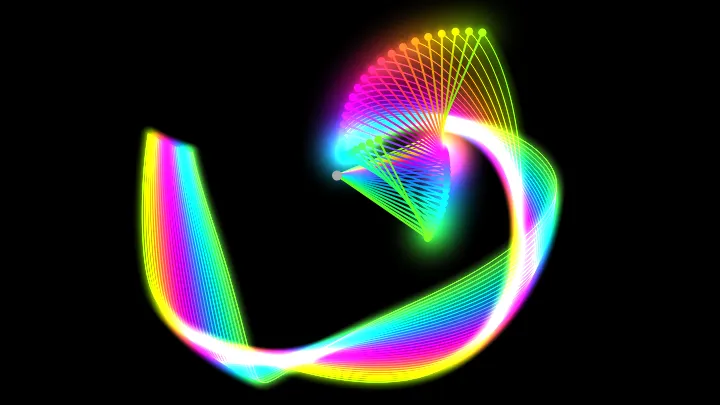
This is an online simulation of a double pendulum, and of pendulums with any number of segments.
A double pendulum is a pendulum with a second pendulum attached to its end. It is one of the simplest physical systems that shows chaotic motion: two double pendulums released with almost the same initial angle follow completely different trajectories after a few seconds.
With this tool you are not limited to two segments. Set the field "number of segments" to 3 for a triple pendulum, to 4 for a quadruple pendulum, or to any larger number to simulate a chain of pendulums that behaves like a whip or a piece of rope. For each segment you can configure the length of the rod, the mass of the bob, the initial angle and the initial angular velocity.
The simulation solves the equations of motion of the whole chain (derived from the Lagrangian of the system) and integrates them with the Runge-Kutta method, so the motion is the real motion of an ideal pendulum, and not an approximation that only works for small angles.
You can also render many pendulums at the same time, each one starting with a slightly different angle, to see the chaos with your own eyes. Just set the "number of simulations" to a value greater than 1 and choose the angle offset of each segment.
While watching the simulation, you can pan, zoom, change the animation speed and customize the visualization: trail length, glow effects, lights, colors, background and more. Move the camera by clicking and dragging your mouse on the canvas, and zoom by scrolling the mouse wheel on the canvas.
You can also record and download videos of your simulations, in webm format, and download the current animation frame as a PNG image. Everything runs directly in your browser: nothing is uploaded to a server. You are free to share the generated images and videos anywhere. Attribution is not required but appreciated.
Simulated time: 0.00 s
Examples
Below you can find some examples of pendulums with different numbers of segments and different initial conditions. Click on any example to apply the configuration and start the simulation.
Double pendulum
The classic double pendulum: two segments of the same length and the same mass, released from rest.
Triple pendulum
A triple pendulum: three segments, each one attached to the bob of the previous one.
Quadruple pendulum
A quadruple pendulum, with four segments of decreasing mass.
Chaos: 30 double pendulums
Thirty double pendulums, each one released with an initial angle only 0.05 degrees larger than the previous one. They move together for a few seconds and then diverge completely.
Chain of 10 segments
A chain of ten short segments behaves like a whip or a piece of rope.
Balanced upside down
A double pendulum starting almost upside down, at 179 degrees. It stays balanced for a moment and then falls.
How to create a pendulum simulation
- Choose the number of segments - Use 2 for a double pendulum, 3 for a triple pendulum, 4 for a quadruple pendulum, or any larger number for a longer chain.
- Configure each segment - For every segment, set the length of the rod, the mass of the bob, the initial angle (in degrees, measured from the vertical line below the pivot) and the initial angular velocity.
- Adjust the physics (optional) - Change the gravity, add damping to make the pendulum slowly lose energy, or reduce the time step to make the simulation more accurate.
- Customize the visualization (optional) - Choose the trail length, the glow and light effects, the size of the bobs, the width of the rods, the colors, the grid and the background color.
- Enable the chaos visualization (optional) - Set the "number of simulations" to a value greater than 1 and give an angle offset to one of the segments, to render several pendulums that start almost identical.
- Watch the simulation - Use the start, pause, resume and restart buttons. Drag the mouse on the canvas to move the camera, and scroll the mouse wheel to zoom.
- Download the result - Download the current animation frame as a PNG image, or record and download a video of the simulation in webm format.
Configuration parameters
Canvas size
| Field | Description |
|---|---|
| Resolution | The canvas width and height, in pixels. You can select an option from the list of common display resolutions, or use "custom" to choose any width and height. |
| Width | The width of the animation canvas, in pixels. |
| Height | The height of the animation canvas, in pixels. |
Initial conditions
| Field | Description |
|---|---|
| Number of segments | The number of segments of the pendulum. Each segment is a rigid rod with a bob (a point mass) at its end, and the first segment is attached to the pivot. Use 2 for a double pendulum, 3 for a triple pendulum, 4 for a quadruple pendulum, and so on. There is no upper limit, but very long chains make the simulation slower, because the tool has to solve a system of equations with one equation per segment on every physics step. |
You can configure each segment of the pendulum separately:
| Field | Description |
|---|---|
| Rod length | The length of the rod of this segment, in pixels. The rods are rigid and massless, so only the bobs have mass. |
| Bob mass | The mass of the bob at the end of this segment. Only the ratio between the masses matters for the motion, so doubling every mass does not change the trajectories. |
| Initial angle (degrees) | The initial angle of this segment, in degrees, measured from the vertical line below the pivot. An angle equal to 0 means the segment hangs straight down, 90 means it points to the right, and 180 means it points straight up. |
| Initial angular velocity (degrees/s) | The initial angular velocity of this segment, in degrees per second. Leave it as 0 to release the pendulum from rest. |
Physics
| Field | Description |
|---|---|
| Gravity | The acceleration of gravity, in pixels per second squared. Greater values make the pendulum swing faster. A negative value makes the gravity point up. |
| Damping | The amount of friction applied to the rotation of each segment. With a damping equal to 0 the pendulum is ideal and never stops. Greater values make the pendulum lose energy and slowly come to rest. |
| Time step (seconds) | The amount of simulated time advanced on every physics step. Smaller values make the simulation more accurate, but more steps are needed to advance the same amount of time. If the pendulum starts gaining energy or behaving strangely, reduce this value or reduce the gravity. |
| Physics steps per frame | The number of physics steps calculated on every animation frame. The time simulated on each frame is the time step multiplied by this value and by the animation speed. |
Visualization
In this section you can configure how you want to visualize the simulation, including some nice effects.
Trails
| Field | Description |
|---|---|
| Show trails | If enabled, the simulation draws the path followed by the bobs. |
| Bobs that leave a trail | Choose between drawing the trail of the last bob only, which is the classic double pendulum drawing, or the trail of all the bobs. |
| Trail length | The length of the trail, in animation frames. Very long trails may make the simulation slow, specially when the number of simulations is large. |
| Trail width | The width of the trail, in pixels. |
| Glow trail | If enabled, the trail has a glow effect (neon). |
| Glow width | If the glow trail is enabled, this sets the width of the glow. |
Rods
| Field | Description |
|---|---|
| Show rods | If enabled, the rods that connect the pivot and the bobs are drawn. Disable it if you only want to see the trails. |
| Rod width | The width of the rods, in pixels. |
| Rod color | The rods can use the same color of the bob at their end, or a custom color that you choose. |
| Show pivot | If enabled, a small circle is drawn at the pivot, the fixed point where the first rod is attached. |
Bobs
| Field | Description |
|---|---|
| Show bobs | If enabled, the bobs are drawn as circles. |
| Bob radius | The radius of the bobs, in pixels. |
| Scale bob radius by mass | If enabled, the radius of each bob is multiplied by the square root of its mass, so heavier bobs are drawn larger. |
| Color generation | This option sets how the colors are generated. It can be a different color for each segment, or a different color for each simulation (useful with the "chaos visualization" option). |
Lights
| Field | Description |
|---|---|
| Show lights | If enabled, the bobs have a light effect, similar to glow or neon. The lights are drawn with additive blending, so when many pendulums overlap their lights add up and the image becomes white. If you use a large number of simulations, disable the lights or reduce the light intensity. |
| Light intensity | The intensity of the light effect. |
| Light radius | The radius of the light effect. |
Chaos visualization
The double pendulum is the most famous example of a chaotic system: a tiny change in the initial angle produces a completely different trajectory after a few seconds. The chaos visualization lets you see this by rendering many pendulums at the same time, in the same animation, each one starting with a slightly different initial angle.
| Field | Description |
|---|---|
| Number of simulations | The number of pendulums simulated and drawn at the same time. Use 1 to simulate a single pendulum. A large number of simulations can make the animation slow. However, you can record a video of the simulation, and the generated video always keeps the configured framerate, even if the recording takes longer than the duration of the video. |
| Angle offset (degrees) | The angle added to the initial angle of this segment on each simulation. For example, if the initial angle is 130 and the angle offset is 0.05, the pendulums start at 130, 130.05, 130.1, 130.15 and so on. At least one segment must have an angle offset different than zero, otherwise all the pendulums are identical and follow exactly the same trajectory. |
Coordinates
| Field | Description |
|---|---|
| Origin | The coordinates origin (0,0), which is where the pivot of the pendulum is placed. It can be "top left" or "center". |
| Offset x | The "x" coordinate offset, in pixels. It determines the horizontal position of the "camera". Adjusting this offset lets you shift the view or "move" the camera. |
| Offset y | The "y" coordinate offset, in pixels. It determines the vertical position of the "camera". A negative value moves the pivot up, leaving more room below for the pendulum. |
Zoom
| Field | Description |
|---|---|
| Zoom | Changing this parameter allows you to "zoom in" or "zoom out". You can also zoom by scrolling the mouse wheel on the canvas. |
Grid
| Field | Description |
|---|---|
| Show grid | Enables or disables the background grid. When enabled, horizontal and vertical lines are displayed across the background. |
| Cell size | Defines the width and height of each grid cell. The cell size scales automatically when zooming in or out. |
| Min scaled cell size | Specifies the smallest allowed size for grid cells after scaling. If the scaled cell size becomes smaller than this value, it is multiplied by 10 until it exceeds the minimum. If the scaled cell size becomes larger than 10 times this value, it is divided by 10 until it is within the acceptable range. This prevents the grid cells from becoming too small or too large when zooming. |
Background
| Field | Description |
|---|---|
| Transparent background | If this option is checked, the animation has a transparent background. |
| Background color | The background color, in hexadecimal value. For example, use #000000 for a black background. |
Animation speed
| Field | Description |
|---|---|
| Animation speed | The speed of the animation. Values greater than 1 mean the animation plays in "fast motion", and values smaller than 1 mean it plays in "slow motion". |
Animation control
| Button | Description |
|---|---|
| Start | Start the simulation. |
| Restart | Restart the simulation from the initial conditions. |
| Pause | Pause the simulation. |
| Resume | Resume the simulation. |
| Stop | Stop the simulation. |
| Download current animation frame | Download the current animation frame (in PNG format). |
| Reset all the options | Restore every option to its default value and restart the simulation. |
Generate and download video
Instead of only watching the simulations online, you can also record and download videos of your simulations. The simulation videos are generated using the webm extension.
| Field | Description |
|---|---|
| Framerate | The amount of frames per second that you want the video to have. |
| Automatically stop after... | If enabled, the video recording stops automatically after the configured time (in seconds) or after the configured amount of frames. |
How the simulation works
The pendulum is modelled as a chain of rigid massless rods, each one with a point mass (the bob) at its end. The state of the pendulum is described by the angle of each segment, measured from the vertical line below the pivot, and by the angular velocity of each segment.
The equations of motion are derived from the Lagrangian of the chain. For a pendulum with n segments they form a system of n linear equations, where the unknowns are the angular accelerations of the segments. On every physics step the tool builds this system, solves it with a Gaussian elimination with partial pivoting, and advances the angles and the angular velocities using the classic fourth order Runge-Kutta method.
No small angle approximation is used, so the simulation is valid for any initial angle, including a pendulum that starts upside down and makes full turns around the pivot.
Frequently Asked Questions (FAQ)
What is a double pendulum?A double pendulum is a pendulum with a second pendulum attached to its end. Even though it is a very simple system, with only two degrees of freedom, its motion is chaotic: it never repeats, and it is impossible to predict in practice over long periods of time.
Why is the double pendulum chaotic?Because the trajectories are extremely sensitive to the initial conditions. Two double pendulums released with a difference of a tiny fraction of a degree follow almost the same path for a few seconds, and then diverge completely. Use the "chaos visualization" of this tool, or the example "Chaos: 30 double pendulums", to see it happening.
Can I simulate a triple pendulum, or a pendulum with more segments?Yes. Set the field "number of segments" to 3 for a triple pendulum, to 4 for a quadruple pendulum, or to any larger number. Each new segment gets its own length, mass, initial angle and initial angular velocity. Long chains of short segments behave like a rope or a whip.
How many segments can I use?There is no hard limit, but the cost of each physics step grows quickly with the number of segments, so very long chains make the animation slow. If that happens, reduce the number of physics steps per frame, reduce the trail length, or record a video instead, because the video always keeps the configured framerate.
Is the simulation physically accurate?The tool solves the exact equations of motion of an idealized pendulum (rigid massless rods, point masses, no air resistance) with a fourth order Runge-Kutta integrator, so it is accurate for the model it simulates. Like every numerical simulation, it accumulates a small error over time, which you can reduce by using a smaller time step. Note also that a chaotic system amplifies any error, so two runs with different time steps eventually diverge from each other.
Which units are used?The lengths are in pixels, the angles are in degrees, the time is in seconds, and the gravity is in pixels per second squared. The masses have no unit, because only the ratio between them affects the motion.
Are my simulations uploaded to a server?No. Everything runs in your browser, on the HTML canvas. Nothing is uploaded, and the images and videos you download are generated on your own computer.
Can I use the generated images and videos?Yes. You are free to use and share the generated images and videos on YouTube, TikTok, or any other social media or website. Attribution is not required but appreciated.