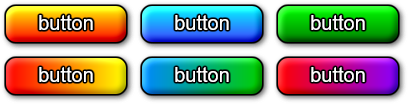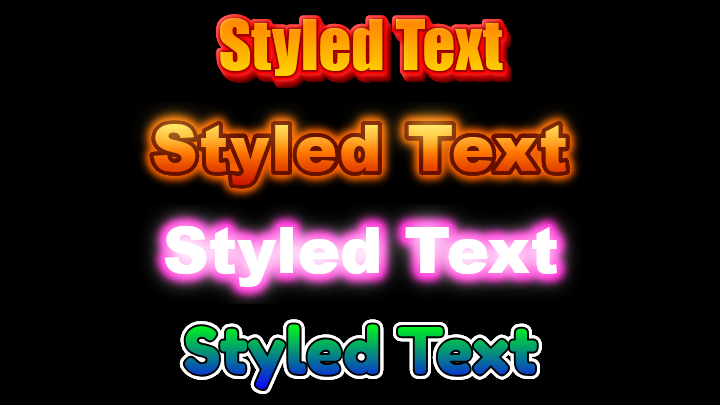

Bevel and Emboss
Add 3D depth, raised edges and carved or stamped looks to text, logos and shapes.
This free online tool applies a bevel and emboss effect to images, like the famous layer style of Photoshop, GIMP and other image editors. Upload a logo, a text, an icon or any image, choose the style of the bevel, its depth and size, and the direction of the light, and download the result as a PNG image.
The effect works on the shape of the image: the edges of the non-transparent pixels are lit on one side and shaded on the other, which makes flat artwork look raised, chiseled, carved or pressed into the surface. It works best on PNG images with a transparent background, but it can also remove a solid background color from JPG images.
Everything runs directly in your browser. No image is uploaded to a server, and nothing needs to be installed.
Drop your image here
How to add a bevel and emboss effect to an image?
- Upload your image - Drop a PNG with a transparent background, such as a logo, a text or an icon. You can also paste an image with Ctrl+V, or click "Try it with a sample image".
- Choose the style - Inner bevel raises the shape from inside its edges, outer bevel raises the surface around it, emboss does both, and pillow emboss presses the edges into the surface.
- Choose the technique - Smooth gives soft, rounded edges; chisel hard gives sharp, precise facets, like engraved metal or stone; chisel soft is in between.
- Adjust the size and the depth - The size is how wide the bevel is, in pixels; the depth is how steep it is. Use "Down" to carve the shape instead of raising it.
- Set the light - Move the angle to choose where the light comes from and the altitude to choose how high it is. Change the colors, blend modes and opacity of the highlights and shadows for gold, glass or metal looks.
- Download the image - Click "Download image" to save the result as a PNG, with its transparency preserved.
Options
| Field | Description | ||||||||||
|---|---|---|---|---|---|---|---|---|---|---|---|
| Style | Where the bevel is created, relative to the edges of the shape.
| ||||||||||
| Technique | How the edges are shaped.
| ||||||||||
| Depth | How steep the bevel is, in percent. At 100% the bevel rises as much as its width; higher values give stronger highlights and shadows. | ||||||||||
| Direction | "Up" raises the shape, "Down" pushes it into the surface, which swaps the position of the highlights and the shadows. | ||||||||||
| Size | The width of the bevel, in pixels. | ||||||||||
| Soften | Blurs the bevel, in pixels, to reduce artifacts and give it a smoother surface. | ||||||||||
| Angle | The direction the light comes from, in degrees: 0° is the right, 90° is the top, 180° is the left and -90° is the bottom. The default, 120°, is the top left, the usual light of interfaces. | ||||||||||
| Altitude | The height of the light above the surface, in degrees. Low values give long, contrasted shading; 90° lights the shape from straight above. | ||||||||||
| Contour | The profile of the bevel. Linear is a straight slope; half round is convex; cove is concave; gaussian is an S shape; cone creates a ridge in the middle of the bevel; ring creates two ridges. | ||||||||||
| Highlight mode, color and opacity | How the parts facing the light are painted. The default is white in "Screen" mode, which brightens the image. A yellow highlight helps create gold effects. | ||||||||||
| Shadow mode, color and opacity | How the parts facing away from the light are painted. The default is black in "Multiply" mode, which darkens the image. | ||||||||||
| Fill opacity | The opacity of the image itself, without affecting the bevel. At 0% only the highlights and shadows are drawn, which gives a glass or watermark look. | ||||||||||
| Remove background color | For images without transparency, such as JPG files: makes the chosen background color transparent, so that the bevel follows the shape of the text or logo and not the rectangle of the image. The color is detected from the top left pixel of the image. The tolerance also removes colors close to it, such as JPG compression noise. | ||||||||||
| Margin | Empty space added around the image, in pixels. Outer bevels and embosses are drawn outside the shape, so they need this space when the shape touches the borders of the image. | ||||||||||
| Transparent background | Keeps the background of the PNG transparent. Turn it off to fill the background with a color, so that the outer bevel is blended with it. |
How does the bevel and emboss effect work?
A bevel is an illusion of lighting. The tool first measures, for every pixel, the distance to the nearest edge of the shape. That distance is turned into a height map: pixels at the edge are low, pixels further inside are high, up to the size of the bevel. The style decides where the slope is placed (inside, outside or across the edge) and the contour decides its profile.
Each pixel then gets a surface direction from the slope of the height map, and is compared with the direction of the light. Slopes that face the light receive the highlight color; slopes that face away receive the shadow color; flat surfaces are left untouched. That is why the effect never changes the center of large shapes, only the area around the edges.
Frequently Asked Questions (FAQ)
Is this bevel and emboss tool free to use?Yes, this tool is 100% free and works directly in your browser, with no installation and no sign-up required.
Are my images uploaded to a server?No. The effect is calculated by your own browser and the image never leaves your computer.
Why is only the border of my image beveled?Because the image has no transparent pixels, so the shape is the whole rectangle of the image. Turn on "Remove background color" to make the background transparent, or use a PNG where the background is already transparent.
Why does the outer bevel not appear?The outer bevel is drawn around the shape, so it needs empty space. If the shape touches the borders of the image, increase the margin. Remember also that the outer bevel is drawn over a transparent background: turn off "Transparent background" to see it over a solid color.
How do I create a gold, metal or chrome text?Start from a yellow or gray text, choose "Chisel hard", a high depth and a small altitude. For gold, use a light yellow highlight color. The "Ring" and "Cone" contours give the multiple reflections typical of polished metal.
How do I make carved or engraved text?Choose "Inner bevel" or "Pillow emboss" and set the direction to "Down". The shape then looks pressed into the surface, with the shadow on the side facing the light.
What is the difference between "Emboss" and "Pillow emboss"?With "Emboss", the whole shape rises above the surface. With "Pillow emboss", the edges are pushed down and the surface rises on both sides of them, so the shape looks stamped into the material.
Is the transparency of my image preserved?Yes. The result is a PNG image, and the transparent areas stay transparent.
Related tools