Content Aware Scale
Content aware scale any image online: make melted meme images and GIFs, or resize photos without squashing the people in them.
This free online content aware scale tool resizes images with seam carving. Instead of squeezing every pixel the same way, it removes (or doubles) the pixels that matter least, along thin wavy lines called seams. Make a photo narrower and the empty sky, the water and the plain walls shrink, while the people and the objects keep their shape.
Push it too far and the result is the famous content aware scale meme: faces and objects melt and twist in strange ways. Choose the "Meme" preset to shrink the image and stretch it back to its original size, and download it as a PNG image or as an animated GIF of the image melting.
Everything runs directly in your browser. No image is uploaded to a server, and nothing needs to be installed.
Drop your image here
Examples
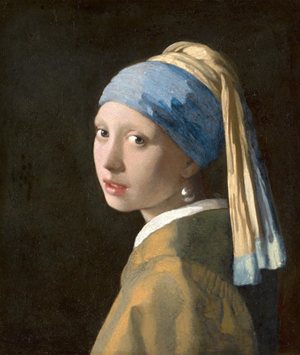
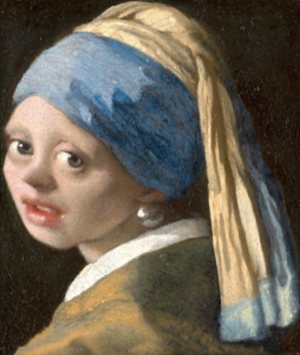
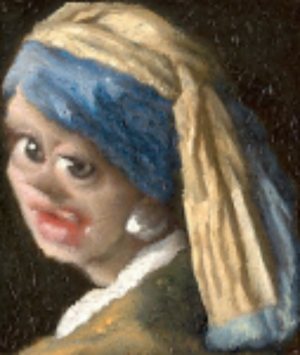
These images were made with this tool, from Johannes Vermeer's painting Girl with a Pearl Earring (about 1665) and Ansel Adams' photograph The Tetons and the Snake River (1942), both in the public domain.
Content aware scale meme
Narrower without squashing
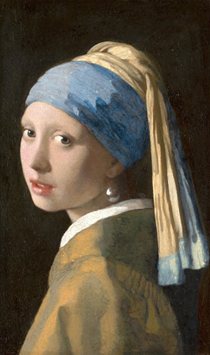
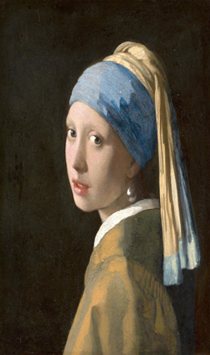
The seams go through the dark background, so the face keeps its proportions. A normal resize squeezes the face as much as the background.
Wider landscape
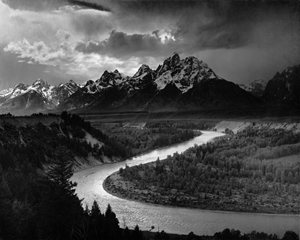
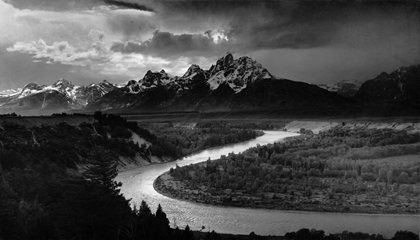
The seams are doubled in the clouds, the plain and the forest, so the mountains and the river keep their shapes.
How to content aware scale an image?
- Upload your image - A photo, a meme template or a screenshot. You can also paste an image with Ctrl+V, or click "Try it with a sample image".
- Choose a preset - "Meme" and "Extreme meme" shrink the image and stretch it back, for the melted look. "Narrower" and "Wider" change the width of a photo while keeping the people and the objects in shape.
- Adjust the size (optional) - Change the width and the height, from 1% to 200%. The smaller the image gets, the stranger it looks.
- Protect or remove areas (optional) - Turn on "Paint on the image" and paint over a face to protect it, or over an object to make it disappear.
- Download the result - Click "Download PNG image" to save the image, or "Download GIF" to save an animation of the image being carved.
Options
| Field | Description | ||||||||||
|---|---|---|---|---|---|---|---|---|---|---|---|
| Presets | Buttons above the image that set the size in one click.
| ||||||||||
| Width and height | The size of the carved image, in percent of the original. Below 100%, seams are removed. Above 100%, seams are doubled, up to about 200%. The width is carved first, then the height. | ||||||||||
| Stretch back to the original size | Stretches the carved image back to the size of the original with a normal resize. The parts that the seams removed come back stretched and the parts they kept come back squeezed, which gives the twisted look of the memes. | ||||||||||
| Paint on the image | Shows the original image so you can paint on it with the mouse or with your finger. The Protect brush (green) keeps the painted pixels: the seams go around them as long as they can. The Remove brush (red) marks pixels to erase: the seams go through them first, until none is left. The Eraser removes the painting. | ||||||||||
| Brush size | The diameter of the brush, in pixels of the working image. | ||||||||||
| Show | "Result" shows the carved image. "Seams" shows the original image with the removed pixels in red and the doubled pixels in green, so you can see where the seams went. "Energy map" shows how important each pixel is for the tool: the seams avoid the bright pixels. | ||||||||||
| GIF duration | The time the animation takes to go from the original image to the result. The GIF also pauses for half a second at both ends. | ||||||||||
| GIF frames per second | How many frames are saved for each second of the animation. More frames make a smoother animation and a bigger file. The carving is shown in at most 200 frames. | ||||||||||
| Largest side of the GIF | The size of the GIF, in pixels, on its longest side. GIF files get big quickly, so the default is 360 pixels. | ||||||||||
| Play back and forth | After the image is carved, the animation plays backwards to the original image, so the GIF loops smoothly. | ||||||||||
| Background | Without "Stretch back to the original size", the frames of the GIF have different sizes. They are centered on this color. | ||||||||||
| Energy | How the importance of the pixels is measured.
| ||||||||||
| Working size | Every seam is searched across the whole image, so big images are slow to carve. Larger images are reduced to this size (on their longest side) first, and the result has this size. |
How does content aware scale work?
The tool uses seam carving, an algorithm published by Shai Avidan and Ariel Shamir in 2007. The same idea is known as content-aware scale in Adobe Photoshop and as liquid rescale in GIMP.
First, each pixel gets an energy: how different it is from its neighbors. Edges, details and textures have a high energy, while the sky, the water and the plain backgrounds have a low energy. Then the tool looks for the seam with the lowest total energy: a path of pixels, one in each row, from the top of the image to the bottom, where each pixel touches the one above it. Among the huge number of possible seams, the cheapest one is found with dynamic programming, row by row: the cheapest way to reach each pixel is its own energy plus the cheapest way to reach one of the three pixels above it.
Removing that seam makes the image one pixel narrower, and the rows close the gap. The tool repeats this until the image has the width you chose. The height is changed in the same way, with seams that go from the left side to the right side. To make an image larger, the tool finds the seams it would remove first and doubles them, which spreads the new pixels over the least important parts of the image.
When the image gets much smaller, the seams run out of unimportant pixels and have to go through faces and objects. That is what twists them, and what makes the content aware scale memes so strange. Stretching the result back to its original size with a normal resize makes the distortion even more visible.
Frequently Asked Questions (FAQ)
Is this content aware scale tool free to use?Yes, this tool is 100% free and works directly in your browser, with no installation and no sign-up required.
Are my images uploaded to a server?No. The seams are calculated by your own browser and the image never leaves your computer.
How do I make a content aware scale meme?Upload the image and click the "Meme" preset. It carves the image to half its width and half its height, and stretches it back to its original size. For a stronger effect, use "Extreme meme" or move the sliders closer to 0%. Click "Download GIF" to get an animation of the image melting.
Is this the same as Photoshop's Content-Aware Scale?Both are based on seam carving, so they work the same way and give similar results, but they are not identical: each program measures the importance of the pixels in its own way.
Why does a face get distorted even with small changes?Skin is smooth, so it has a low energy, and the seams may go through it. Paint the face with the "Protect" brush: the seams will go around it.
How do I remove an object from a photo?Turn on "Paint on the image", choose the "Remove" brush and paint over the object. The seams go through the painted pixels first, until the object is gone. The width you choose is still measured from the original image, so at 100% the image keeps its width: the tool then doubles other seams to fill the space. Objects that are taller than they are wide are the easiest to remove.
Why is it slow on large images?Each seam is searched across the whole image, and halving the width of a 1000-pixel image takes 500 seams. The tool keeps the seams it has found, so moving the sliders again is usually instant. For faster results, choose a smaller "Working size".
Can I use the images commercially?Yes. The tool does not add a watermark, and the result belongs to you, as long as you have the rights to the image you uploaded.
Related tools