
Remove Objects from Photos
Paint over people, objects or text, and the tool fills the area with pieces of the rest of the photo, like Photoshop's Content-Aware Fill.
This free online tool removes unwanted objects from photos: a tourist on the beach, a trash can, a power line, a car, a date stamp, a blemish. Paint over what you want to remove, click "Remove painted area", and the hole is filled with texture copied from the rest of the image (sand, grass, water, a wall, the sky), so it blends in as if the object had never been there.
It works like the Content-Aware Fill of Adobe Photoshop, with the same algorithm, PatchMatch. It doesn't use AI and doesn't invent anything: every pixel of the fill comes from your own photo.
Everything runs directly in your browser. Your photo is not uploaded to a server, there is no sign-up and no watermark.
Drop your image here
Examples
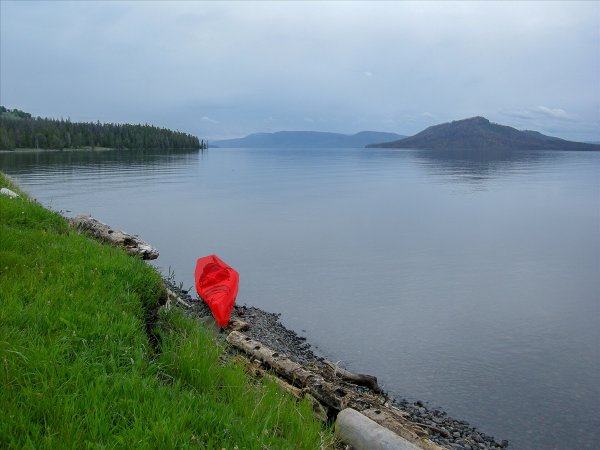
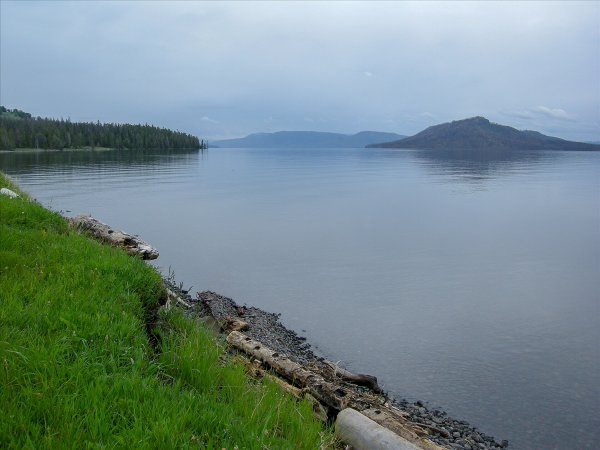
These photos were edited with this tool, with the "Best" quality and the other options at their defaults. The painted area is shown in red. The beach and the Yellowstone Lake photos are from the U.S. National Park Service (public domain), the kayaker photo is from Unsplash (CC0), all from Wikimedia Commons.
A man and his dog on a pebble beach
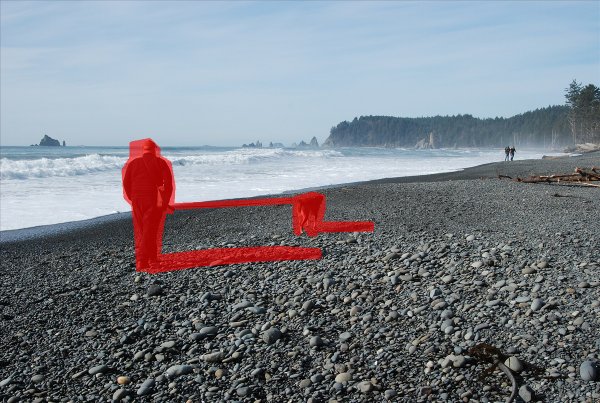
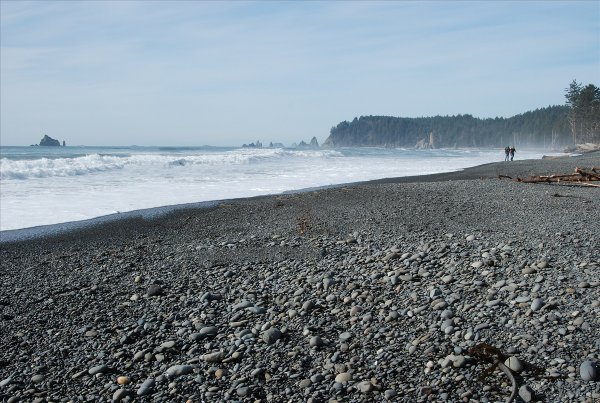
The line where the sea meets the beach continues behind the man, and the pebbles keep their size: large in front, small in the distance.
A kayak on the shore
A kayaker on a mountain lake
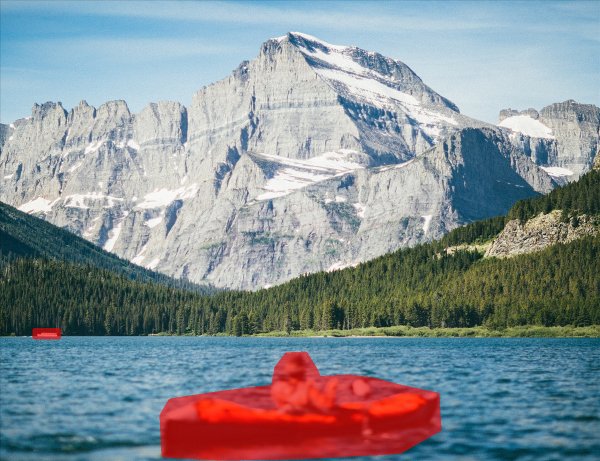
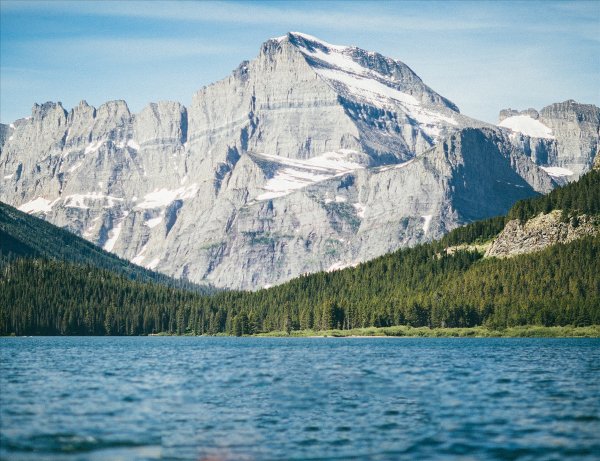
A large hole in water is harder: the waves get bigger towards the bottom of the photo, and the fill has to copy them from other parts of the lake.
How to remove objects from a photo?
- Upload your photo - Drop it in the box, choose it from your device, or paste it with Ctrl+V. You can also click "Try it with a sample image".
- Paint over the object - With the red "Remove" brush, paint over the person or the object, a little beyond its edges. Don't forget its shadow and its reflection. If there are several things to remove, paint them all.
- Click "Remove painted area" - The painted area is filled with pieces of the rest of the photo. It takes a few seconds, depending on the size of the area.
- Fix the details (optional) - Not happy with the result? Click "Try another result", or undo and paint again. If something is left, paint over it and click "Remove painted area" again.
- Download the image - Choose JPG, PNG or WebP and click "Download image". The image keeps its original size.
Options
| Field | Description | ||||||||
|---|---|---|---|---|---|---|---|---|---|
| Brush | Paint on the image with the mouse, a pen or your finger.
| ||||||||
| Brush size | The diameter of the brush, in pixels of the working image. The circle under the mouse shows its size. | ||||||||
| Remove as soon as I stop painting | Fills each stroke of the "Remove" brush as soon as it ends, without clicking "Remove painted area". It is handy for small objects, but when there are several objects, it is better to paint them all first: otherwise the first fill can copy the objects that are still there. | ||||||||
| Expand the painted area | Grows the painted area by this number of pixels before filling it. The edges of an object are often blurred over the background, and a thin halo left around the hole would be copied into the fill. | ||||||||
| Copy from | "Anywhere in the image" lets the fill take pieces from the whole photo. "Only near the painted area" only uses the pixels around the hole, up to the chosen distance. It helps when the right texture is next to the object, and the rest of the photo has other things that could be copied by mistake. | ||||||||
| Patch size | The fill is made of small squares (patches) compared with the squares of the rest of the image. Small patches follow fine details and thin lines. Large patches copy larger pieces at once, which keeps the shape of large textures like waves, bricks or tiles, but they are slower. | ||||||||
| Quality | The number of times the fill is improved. "Fast" is about twice as fast as "Normal", and "Best" about twice as slow, with fewer visible seams. | ||||||||
| Color adaptation | The pieces of the fill may come from a lighter or darker part of the photo, which leaves a visible outline. Color adaptation measures the difference on the border of the hole and corrects the colors of the whole fill smoothly, without changing its details. | ||||||||
| Working size | Larger photos are reduced to this size (on their longest side) while you edit them. When you download the result, the original photo is kept at its full size, and only the filled areas are enlarged and pasted into it. | ||||||||
| Try another result | Fills the same area again, with other random choices: the result is a little different each time. | ||||||||
| Undo and Redo | Go back to the previous painting or fill, and forward again. The keyboard shortcuts Ctrl+Z and Ctrl+Y also work. |
Tips for a better result
- Paint a little beyond the object, and include its shadow and its reflection in water. Anything left on the border of the hole will be copied into the fill.
- Remove all the unwanted objects at once. If two people stand on a beach and you remove only one, the fill may copy the other one into the hole.
- Use the "Don't copy" brush when a piece of something you don't want appears in the fill.
- Remove large objects in several steps. Fill a part of the object first, then the rest: each fill has more good surroundings to copy from.
- Natural textures are the easiest: sand, grass, water, sky, walls, roads, foliage. Objects in front of faces, text or detailed buildings are much harder, because the fill can only copy what already exists in the photo.
How does it work?
The tool fills the hole with an algorithm of image completion by Yonatan Wexler, Eli Shechtman and Michal Irani (2007), made fast by PatchMatch, by Connelly Barnes, Eli Shechtman, Adam Finkelstein and Dan Goldman (2009). PatchMatch was developed with Adobe and is the algorithm behind the Content-Aware Fill of Photoshop.
The idea is that a good fill should look like the rest of the photo everywhere: every small square of pixels (a patch) that overlaps the hole should be similar to some square of the known part of the image. The tool repeats two steps. First, each patch that overlaps the hole looks for the most similar patch outside the hole, its nearest neighbor. Then each pixel of the hole takes the average of the colors that the nearest neighbors of the patches around it propose. After a few rounds, the patches agree with each other and the fill becomes a coherent piece of texture.
Comparing each patch with every other patch of a photo would take hours. PatchMatch only needs a few passes: each patch starts with a random guess, then tries the match of its neighbor shifted by one pixel (in a photo, the neighbors of a good match are usually good matches too, so a good match spreads to a whole region at once), and a few random guesses closer and closer to its best match.
To fill large holes with large structures, like the line where the sea meets the beach, the image is first reduced to a small size, where the hole is only a few pixels wide. The fill is done there, then enlarged and refined at larger and larger sizes. The tool also compares the texture of the patches (how much the brightness varies around each pixel), as in the method of Alasdair Newson, Andrés Almansa, Yann Gousseau and Patrick Pérez (2017), so that textured areas like pebbles or grass are not filled with smooth, blurry ones.
Frequently Asked Questions (FAQ)
Is this tool free to use?Yes, this tool is 100% free and works directly in your browser, with no installation, no sign-up and no watermark.
Are my photos uploaded to a server?No. The fill is computed by your own browser and the photo never leaves your device.
Is this the same as Photoshop's Content-Aware Fill?It uses the same algorithm, PatchMatch, so it works the same way and gives similar results. Photoshop adds its own improvements, like searching for rotated and scaled patches, so the results are not identical.
Does it use AI?No. The fill only copies and blends pieces of your own photo, without a neural network. That is why it works best on natural textures, and why it can't rebuild a face or a word hidden behind the object: AI tools invent those parts, this tool can only reuse what is visible.
Why does the fill copy another object into the hole?The fill copies whatever looks most like the surroundings of the hole. Paint over the unwanted objects too and remove them all at once, or paint them with the "Don't copy" brush.
Why is there a visible edge around the filled area?Usually because the painted area didn't cover the whole object: a few pixels of its edge or of its shadow are left and copied. Increase "Expand the painted area", or undo and paint a little wider. Keep "Color adaptation" on.
Can I remove text, a watermark or a date stamp?Yes, on a simple background: paint over the text and click "Remove painted area". Removing a watermark from an image you don't own may break its copyright, so only do it on your own photos.
Does it reduce the quality of my photo?No. Only the painted areas change: the rest of the photo keeps its original pixels and size. Choose PNG for no compression at all, or JPG for a smaller file.
Why is it slow on large areas?The time grows with the size of the painted area, not with the size of the photo. A person in a 2000-pixel photo takes a few seconds. For faster results, choose a smaller "Working size", or the "Fast" quality.
Related tools