
Tesseract Viewer (4D Hypercube)
Rotate a tesseract, the 4D hypercube, through the fourth dimension and see its 3D shadow and its slices.
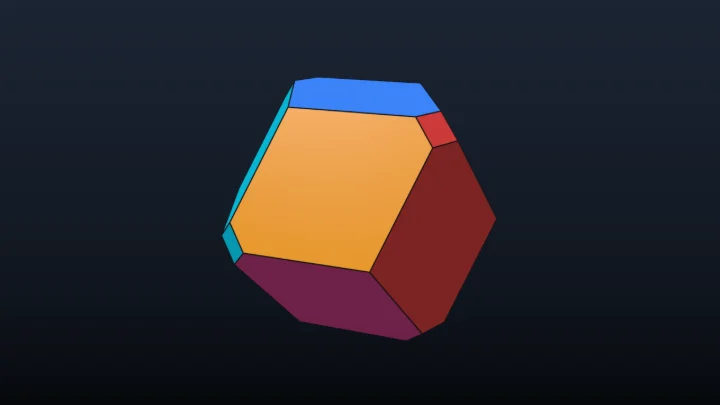
This is a free online tesseract viewer. The tesseract is to the cube what the cube is to the square: take a cube, move it along a fourth direction perpendicular to the other three, and the space it sweeps is a tesseract. Here you can rotate it through the fourth dimension, watch its famous shadow (a cube inside a cube that seems to turn itself inside out) and slice it with our 3D space to see cubes, prisms, tetrahedra and octahedra appear.
Download the result as a PNG image, an animated GIF or a WebM video that loops perfectly. Everything is drawn by the graphics card of your own device: nothing is uploaded and nothing needs to be installed.
Options
Drag the image to turn the camera around the object, and shift-drag or right-drag to rotate the object through the fourth dimension. Use the mouse wheel to zoom. On a phone, drag with one finger and pinch with two to zoom; to rotate through the fourth dimension, change "Dragging the image".
How to use the tesseract viewer?
- Start with a preset - "Turning through 4D" shows the slice inside the shadow while the tesseract rotates in the plane XW. "Classic shadow" is the well-known animation of the hypercube. "Double rotation" turns it in two planes at once. "Vertex first" pushes the tesseract through our space corner first, and "Slices while turning" shows how the slice changes as it rotates.
- Rotate it yourself - Shift-drag or right-drag the image to turn the tesseract through the fourth dimension, in the direction you drag. Drag normally to look at it from another side, and use the mouse wheel to zoom.
- Move the slice - In "Slice" or "Both", drag "Position of the slice along W". Without rotation, the slice is always the same cube until it reaches W = ±0.5, where it disappears: you are then outside the tesseract.
- Change the shadow - Choose a perspective or an orthographic projection, and move the 4D eye closer to make the inner cube smaller.
- Download it - Save the current frame as a PNG image, or one loop of the animation as a GIF or a WebM video.
Settings
Below are the options you can change to explore the object and to create your image or animation.
| Field | Description |
|---|---|
| Show | Slice shows the solid part of the object that is inside our 3D space, like the cross-section of an apple cut by a knife. Shadow shows the whole object, projected from 4D to 3D, as lines. Both shows the slice inside a faint shadow, which tells where the slice is in the object. |
| Position of the slice along W | Moves our 3D space along the fourth axis, W. The objects go from about -1 to 1, so the slice changes shape as it goes through them, and it is empty outside of that range. |
| Projection of the shadow | Perspective makes the parts of the object that are closer to the 4D eye look larger, which gives the famous "cube inside a cube" image of the tesseract. Orthographic simply drops the coordinate W, so the parts that are closer or farther in W have the same size. |
| Distance of the 4D eye | How far from the object the 4D eye is, in the perspective projection. A small distance gives a strong perspective, with a big difference between the near and the far parts. |
| Dragging the image | What happens when you drag the image: turn the camera around the object, as in any 3D viewer, or rotate the object through the fourth dimension, in the plane formed by the direction of the drag and the axis W. Shift-drag or right-drag does the other one. |
| Field of view | The angle seen by the 3D camera, from the top of the image to the bottom. Small angles look flatter, big angles exaggerate the 3D perspective. |
| XY, XZ, YZ, XW, YW and ZW angles | The orientation of the object in 4D. In four dimensions, an object turns in a plane, not around an axis, and there are six planes. XY, XZ and YZ are the ordinary rotations of 3D. XW, YW and ZW mix one of our directions with the fourth one, and turn the object "through" the fourth dimension. |
| Duration of one loop | The time, in seconds, of one loop of the animation, which is also the length of the downloaded GIF or video. |
| Turns in each plane, per loop | How many full turns the object makes in each plane during one loop. Turning in two planes at the same time, like XW and YZ, gives a "double rotation", which only exists in 4D. Whole numbers make an animation that loops perfectly. |
| Move the slice back and forth along W | Moves our 3D space through the object during the loop, so you see the object appear, change shape and disappear, the way a 3D object would look to a 2D creature as it passes through its plane. The distance of the sweep is how far the slice goes on each side. |
| Turns of the camera per loop | Turns the 3D camera around the object during the loop, to show the slice and the shadow from every side. |
| Color of the slice | A different color for each cell (the 3D faces of a 4D polytope), colors that follow the direction of each point in 4D (so they stay attached to the object while it turns), colors that show whether the surface faces the +W side (orange) or the -W side (blue) of our space, or a single color. |
| Edges of the slice | Draws the edges of the polyhedron formed by the slice of a polytope, with the chosen width and color. |
| Color of the shadow | Colors the lines of the shadow by their coordinate W, from blue (toward -W) to orange (toward +W), or with a single color. The lines that are farther from the camera fade into the background, which makes the depth easier to see. |
| Width of the lines / Opacity / Vertices | The width of the lines of the shadow, its opacity when it is drawn with the slice, and whether the vertices of a polytope are drawn as dots. |
| Background colors | The colors at the top and at the bottom of the background, which form a vertical gradient. |
| Samples per pixel | How many rays are calculated for each pixel of the slice, to smooth its edges. While the object moves, the tool may use fewer samples or fewer pixels to keep the animation smooth on slower graphics cards. |
| Resolution / Width / Height | The size of the image in pixels, which is also the size of the PNG download. Choose one of the common resolutions, or type any width and height. |
| Download the animation | Saves one loop of the animation, starting from the current frame, as an animated GIF or a WebM video, with the chosen width and number of frames per second. |
What is a tesseract?
A point moved along a line draws a segment. A segment moved sideways draws a square, a square moved upward draws a cube, and a cube moved along a fourth direction, W, draws a tesseract. Each step doubles the number of vertices: the tesseract has 16 vertices, 32 edges, 24 square faces and 8 cubic cells. Every vertex touches 4 edges, one along each of the four axes, and all the edges have the same length and meet at right angles.
The usual picture of a tesseract, a small cube inside a big one with their corners connected, is its perspective shadow. The big cube is the cell closest to the 4D eye, the small one is the farthest, and the six truncated pyramids between them are the other six cells, seen at an angle. All eight cells are identical cubes in 4D. When the tesseract turns in the plane XW, the near cell moves away and the far one comes closer, so the inner cube grows while the outer one shrinks, and the shadow seems to turn inside out. Nothing really passes through anything: the cells are just seen from a changing angle, like the faces of a rotating cube seen in perspective.
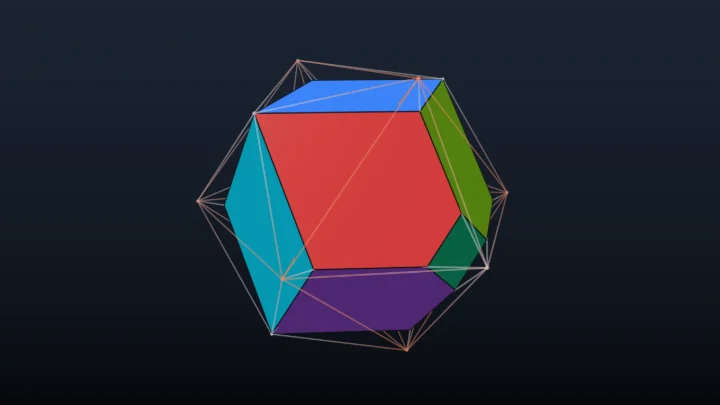
The slices are just as surprising. Cut straight, a tesseract gives a cube, the 3D version of the square you get by cutting a cube parallel to a face. Turned by 45 degrees in the plane XW, it gives a rectangular box, and when it enters our space with an edge first, the slice is a triangular prism that becomes a hexagonal prism. And when it enters our space with a vertex first, the slice starts as a tiny tetrahedron, grows, gets its corners cut off and becomes a regular octahedron exactly in the middle, before shrinking back into a tetrahedron that points the other way. This is the 4D version of the hexagon that appears when you cut a cube across its long diagonal.
Frequently Asked Questions (FAQ)
Is this tesseract viewer free?Yes, it is 100% free and works directly in your browser, with no installation and no sign-up required.
What is the difference between a tesseract and a hypercube?"Hypercube" is the general name for the cube in any number of dimensions, and the tesseract is the hypercube of dimension 4. It is also called the 8-cell, because it has 8 cells, or the 4-cube.
Why does the tesseract look like it turns inside out?Because we see its perspective shadow. In the perspective projection, the cell that is closer to the 4D eye looks bigger, and the one that is farther looks smaller. A rotation in a plane that contains the axis W, like XW, brings the far cell closer and pushes the near one away, so they exchange their places in the shadow. Choose the orthographic projection to see the same rotation without this effect.
Why does the slice stay a cube when I move it?When the tesseract is not rotated through the fourth dimension, every slice between W = -0.5 and W = 0.5 is the same cube, like every horizontal slice of a vertical box is the same rectangle. Turn it in XW, YW or ZW, or choose the "Vertex first" preset, to see the slice change shape.
What does "double rotation" mean?In 4D, an object can turn in two perpendicular planes at the same time, for example XW and YZ. If both turn at the same speed, no point of the object except its center stays still, and every vertex travels along a circle. This kind of rotation is impossible in 3D, where every rotation has an axis that doesn't move.
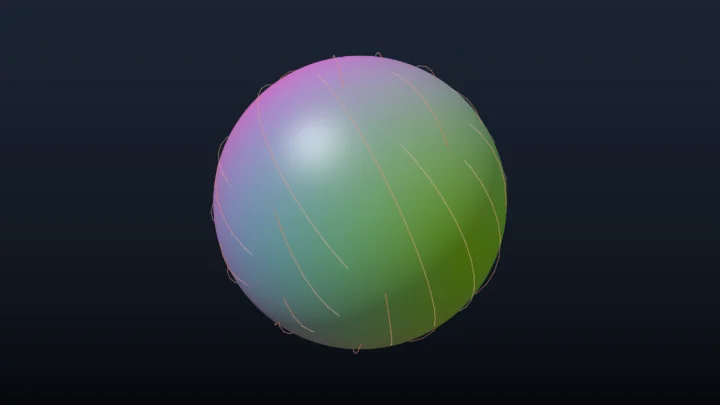
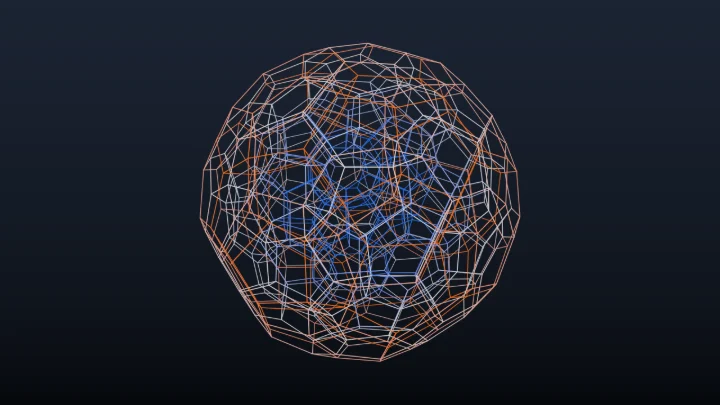
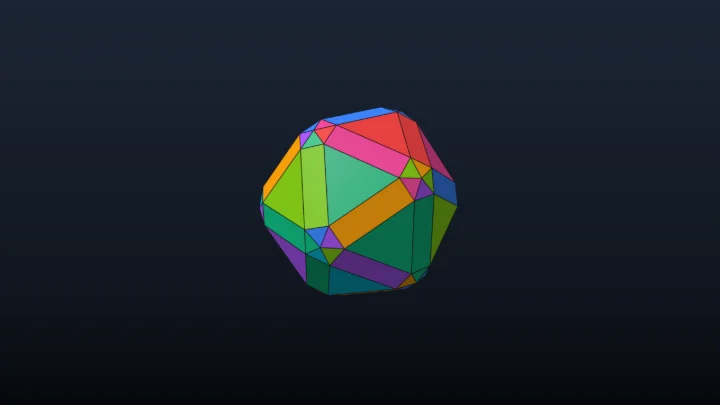
Can I see other 4D shapes?Yes. The 4D Object Viewer has all the regular 4D polytopes, duoprisms and curved shapes. There are also dedicated pages for the hypersphere, the 24-cell, the 120-cell and the 600-cell.
Can I use the animations in my own projects?Yes. You can use the images, GIFs and videos in websites, videos, presentations, lessons and printed material.
Related tools