RGB Formula Editor
Transform images by applying custom RGB formulas to each pixel.
RGB Formula Editor is a free online tool that allows you to edit images using a custom formula for each color channel (red, green and blue) and the alpha channel.
Enter formulas for red, green, blue and alpha channels and see the changes in real time.
Drop your image here
How to apply a custom RGB formula to each pixel of an image?
- Upload the image that you want to transform. The image will load in the canvas above and the options will appear beside the image.
- Type the formulas for the red, green, blue and alpha channels. See in the section below the variables that you can use in the formulas.
- You can change the formulas and see the result in real time.
- Click "Download image" to download the image in PNG format.
Variables
The formulas can contain variables: r, g, b, a, x and y. See the table below for the description of each variable.
| Variable | Description |
|---|---|
| r | The value of the red color channel of the original image, ranging from 0 to 255. |
| g | The value of the green color channel of the original image, ranging from 0 to 255. |
| b | The value of the blue color channel of the original image, ranging from 0 to 255. |
| a | The value of the alpha channel of the original image, ranging from 0 to 255. |
| x | The horizontal position of the pixel in the image, ranging from 0 to the image width minus 1. |
| y | The vertical position of the pixel in the image, ranging from 0 to the image height minus 1. |
Examples
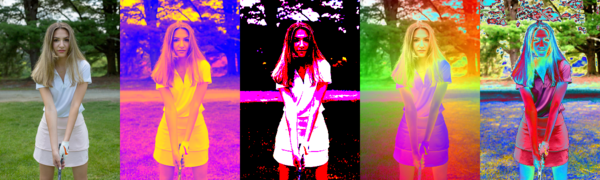
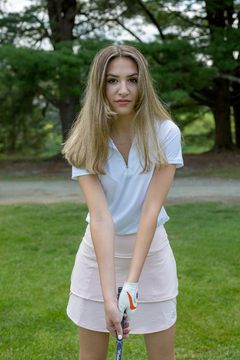
Below are some examples of images before and after applying the formulas, together with the formulas used.
| Original image | Image after applying the formulas | Description and formulas | ||||||||
|---|---|---|---|---|---|---|---|---|---|---|
 | 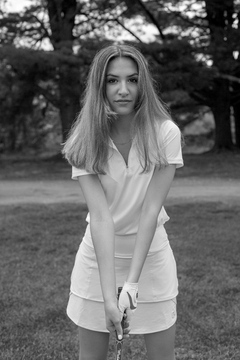 | Example #1 Grayscale Formulas:
When RGB value is outside range [0-255]: Clamp | ||||||||
| 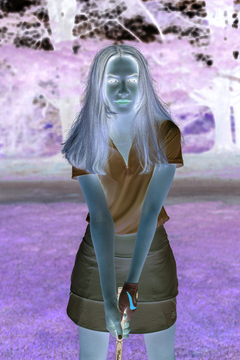 | Example #2 Invert colors. Formulas:
When RGB value is outside range [0-255]: Clamp | ||||||||
| 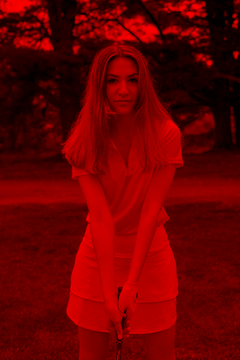 | Example #3 Red channel. Formulas:
When RGB value is outside range [0-255]: Clamp | ||||||||
| 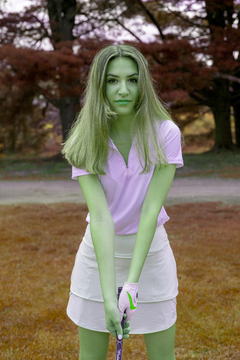 | Example #4 RGB channel swap. RGB was converted to GRB. In the example image, the grass become reddish and the woman mouth becomes green. Formulas:
When RGB value is outside range [0-255]: Clamp | ||||||||
| 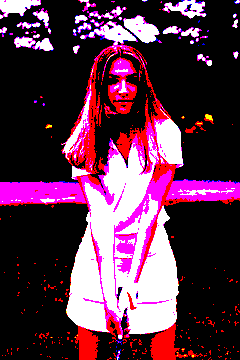 | Example #5 Color quantization. Formulas:
When RGB value is outside range [0-255]: Clamp | ||||||||
| 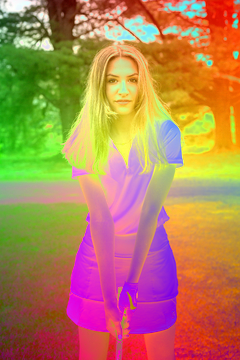 | Example #6 Custom formula. Formulas:
When RGB value is outside range [0-255]: Bounce |
Configuration parameters
Formulas
| Field | Description |
|---|---|
| Red | The formula for the red color channel. Must evaluate to a number between 0 and 255. |
| Green | The formula for the green color channel. Must evaluate to a number between 0 and 255. |
| Blue | The formula for the blue color channel. Must evaluate to a number between 0 and 255. |
| Alpha | The formula for the alpha channel. Must evaluate to a number between 0 and 255. |
Additional configuration
| Field | Description | ||||||||
|---|---|---|---|---|---|---|---|---|---|
| Behaviour when RGB value is outside range [0-255] | The formulas for red, green, blue and alpha channels must evaluate to numbers in the range between 0 and 255. For any pixel, if a formula evaluate to a value outside this range, the value will be automatically adjusted to be in that range, based on the selected configuration (clamp, bounce or remainder). This parameter determines how the values will be adjusted to belong to the range, when needed.
|
Related tools