
Spirograph
Create spirograph images and animations easily with this online tool.
What is this online tool?
This tool lets you easily create Spirograph images and animations online.
This is a simulation of a drawing machine, with two or more connected arms. Each arm can rotate at a different speed. The edge of the last (outer) arm has a "pencil" that is used to make the drawings. It can create images similar to the classic Spirograph art toy.
You can add any number of rotating arms. For each arm, you can choose the arm length, rotation speed and the initial angle. You can also customize the visualization by choosing parameters like color, line width, opacity and many more. You can also add shadows and glow effects to create beautiful spirograph images and animations.
To learn more about each configuration parameter, read the documentation below. You can also look at the examples below and learn how they were created.
Examples
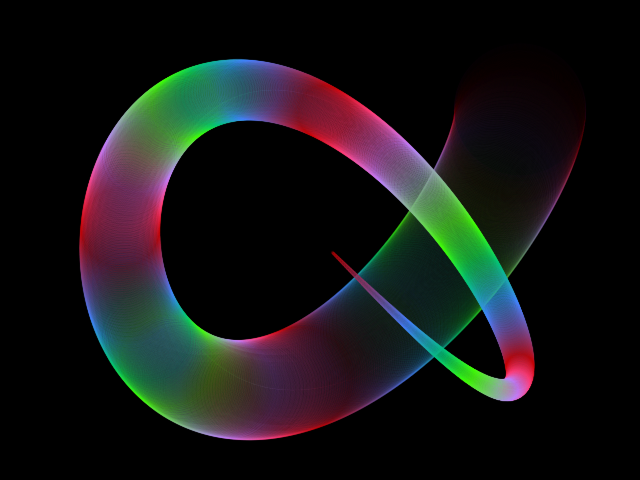
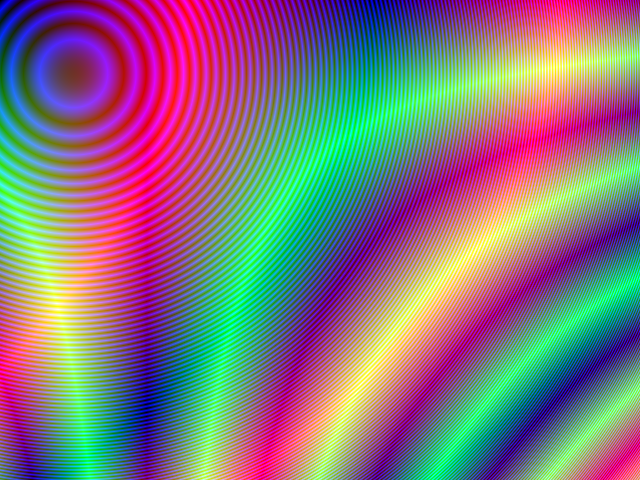
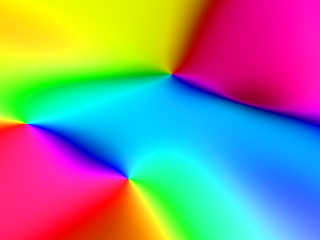
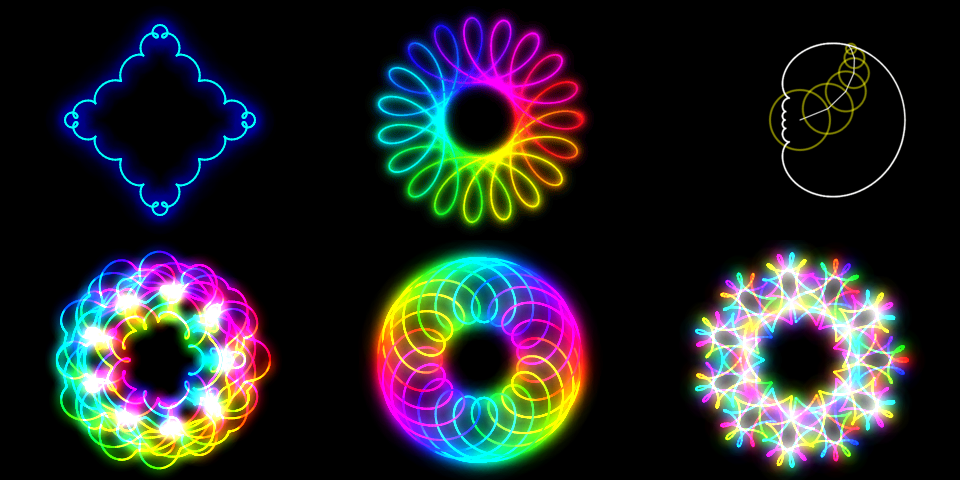
Below you can find some examples of images created with this online tool.
Click on any image below to start the spirograph animation and view the parameters used to generate it.
Documentation
Spirograph arms
In this section you can add, edit or delete rotating arms.
| Button | Description |
|---|---|
| Add arm | Add another rotating arm. |
| Delete | Delete the arm. |
For each arm, you can configure the parameters below.
| Field | Description |
|---|---|
| Arm length | The arm length, in pixels. |
| Rotation speed | The arm rotation speed, in degrees per animation frame. A positive value indicates clockwise rotation, while a negative value indicates counter-clockwise rotation. |
| Initial angle | The arm initial angle, in degrees. |
Using variables (advanced)
Using variables allows you to create cool spirograph animations by dynamically changing the arms length or rotation speed. It's a unique feature of this online tool.
You can use variables in the arms length and rotation speed. If the option "redraw full spirograph" is enabled, you can also use variables in the initial angle.
The available variables are t and step.
| Variable | Description |
|---|---|
| t | Elapsed time, in animation frames. The spirograph animation is composed of "frames", where in each animation frame a line segment is drawn, or, if the option "redraw full spirograph" is enabled, the full spirograph will be redrawn (possibly with different parameters). |
| step | The current spirograph rendering step. The spirograph is drawn in "steps", where in each step a line segment of the spirograph is drawn in the canvas. |
For example, if you use t for the arm length, the arm length will increase 1 pixel every animation frame.
The variables t and step will always have the same value, unless you enable the option "Redraw full spirograph", in the advanced section (see below for more information).
Visualization
Arms
| Field | Description | ||||||||
|---|---|---|---|---|---|---|---|---|---|
| Show arms | Determines whether the arms will be shown or hidden. | ||||||||
| Arm color | The color of the arms, in hexadecimal value. For example, use #ff0000 for red arms. | ||||||||
| Line width | The width of the arms, in pixels. | ||||||||
| Opacity | The transparency of the arms. Must be number between 0.0 (fully transparent) and 1.0 (fully opaque). | ||||||||
| Line cap | The arms are rendered using lines. The line cap determines the shape used to draw the end points of the lines. Can be "butt", "round" or "square".
|
Circles
| Field | Description |
|---|---|
| Show circles | Determines whether circles will be shown or hidden. If you enable this option, a circle will be drawn for each arm, like in the image below: 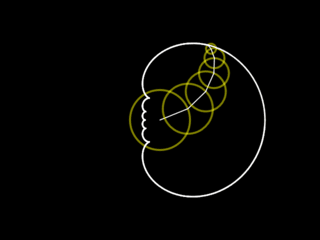 |
| Color | The color of the circles, in hexadecimal value. For example, use #ffff00 for yellow circles. |
| Line width | The width of the stroke, in pixels, for drawing the circles. |
| Opacity | The transparency of the circles. Must be number between 0.0 (fully transparent) and 1.0 (fully opaque). |
Drawing
| Field | Description |
|---|---|
| Show drawing | Determines whether the spirograph drawing will be shown or hidden. |
| Line width | The width of the stroke, in pixels, for the spirograph drawing. |
| Opacity | The transparency of the lines in the spirograph drawing. Must be number between 0.0 (fully transparent) and 1.0 (fully opaque). |
| Pen color | The color of the spirograph drawing, in hexadecimal value. For example, use #ff0000 for red. |
| Blend mode | The blend mode sets the type of compositing operation to apply when drawing. It sets how a new line will be drawn over the drawings that are already drawn on the canvas. For more information check these links: Blend Modes (Wikipedia), globalCompositeOperation (MDN Web Docs) and globalCompositeOperation (w3schools). |
Drawing hue change
| Field | Description |
|---|---|
| Enable hue change | Determines whether to enable or disable hue change. If enabled, the color of the spirograph drawing will change based on some rules, making the drawing have different colors. The color (hue) can change by position (x and y coordinates), by time (animation frame) and by spirograph step (line segment). |
| Hue change per animation frame | The amount of hue change per animation frame, in degrees. Must be a number between -180 and 180. The number 1 means the hue will change 1 degree every animation frame. The number 0 means there will be no hue change. |
| Hue change per spirograph step | The amount of hue change per spirograph step, in degrees. A spirograph step is a line segment of the spirograph drawing. Must be a number between -180 and 180. The number 1 means the hue will change 1 degree every spirograph step. The number 0 means there will be no hue change. |
| Hue change per offset x | The amount of hue change per horizontal distance, in pixels, from the center (0,0). |
| Hue change per offset y | The amount of hue change per vertical distance, in pixels, from the center (0,0). |
Glow effect
| Field | Description |
|---|---|
| Enable glow effect | Determines whether to apply a glow effect in the spirograph drawing. |
| Glow color | The color of the glow, in hexadecimal value. For example, use #ff0000 for red. |
| Glow blur | The glow blur, in pixels. You can also apply multiple layers of blur, by using comma-separated values. |
| Blend mode | The blend mode sets the type of compositing operation to apply when drawing. It sets how a new line will be drawn over the drawings that are already drawn on the canvas. For more information check these links: Blend Modes (Wikipedia), globalCompositeOperation (MDN Web Docs) and globalCompositeOperation (w3schools). |
Shadows
| Field | Description |
|---|---|
| Enable shadows | Determines whether to draw shadows in the spirograph drawing. |
| Shadow color | The color of the shadows, in hexadecimal value. For example, use #000000 for black shadows. |
| Shadow blur | The shadow blur, in pixels. You can also apply multiple layers of blur, by using comma-separated values. |
Animation speed
| Field | Description |
|---|---|
| Animation speed | The spirograph animation speed. Must be an integer number. Use 1 for normal speed. Use 2 to play the animation 2 times faster. If you use 0, the animation will "pause". |
Advanced
| Field | Description |
|---|---|
| Redraw full spirograph | If enabled, the entire spirograph will be redrawn at each animation frame. If disabled, only a line segment will be drawn at each animation frame. This option is useful if you are using variables to draw the spirograph, making it dynamically morph or rotate during the animation, or if you want to apply hue change to the entire spirograph. You must enable this option if you want to use variables in the arms initial angle, making the spirograph "rotate" during the animation. Enabling this option may cause the animation to become slow, with low framerate. |
| Hue change per animation frame | The amount of hue change per animation frame, in degrees. Must be a number between -180 and 180. The number 1 means the hue will change 1 degree every animation frame. The number 0 means there will be no hue change. |
Canvas size
| Field | Description |
|---|---|
| Resolution | The canvas width and height, in pixels. You can select an option from the list of commom display resolutions, or use "custom" to choose any width and height. |
| Width | The width of the animation canvas, in pixels. |
| Height | The height of the animation canvas, in pixels. |
Background
| Field | Description |
|---|---|
| Transparent background | If this option is checked, the animation will have transparent background. |
| Background color | The background color, in hexadecimal value. For example, use #000000 for a black background. |
Generate and download video
Instead of only watching the animations online, you can also record and download videos. The videos will be generated using webm extension.
You are free to share the generated videos on YouTube, TikTok or any other social media or website. Attribution is not required but appreciated.
| Field | Description |
|---|---|
| Framerate | The amount of frames per second that you want the video to have. |
| Automatically stop after... | If enabled, the video recording will stop automatically after the configured time (in seconds) or after the configured amount of frames. |
Related tools