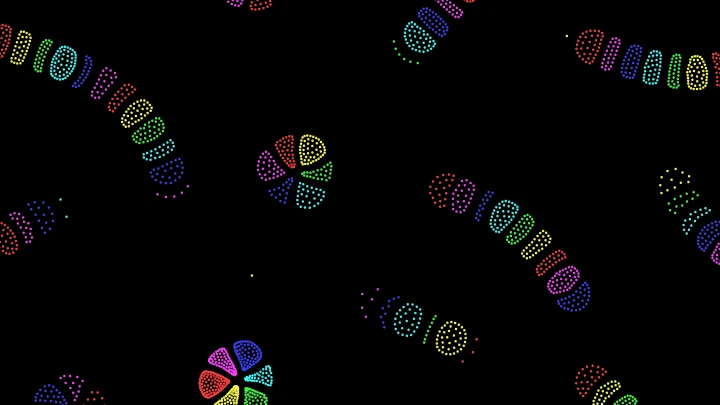

3D Particle Life
Watch thousands of colored particles that attract and repel each other organize into 3D chains, worms and cells in a box. Edit the attraction matrix, turn the camera around them, and download images, GIFs and videos.
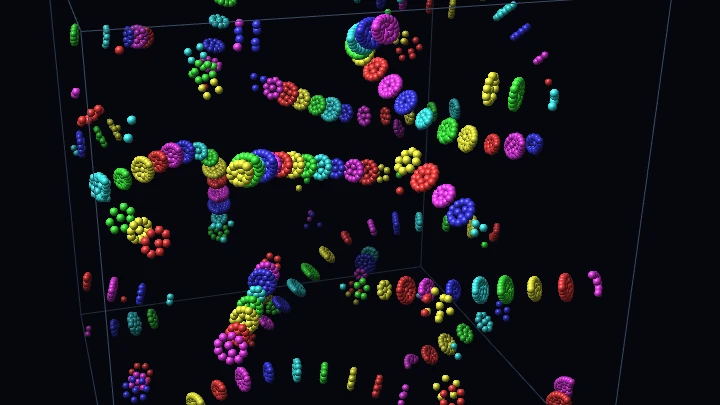
This is an online 3D particle life simulation: thousands of colored particles float in a box, and each color (each type) attracts or repels the other colors following a simple table, the attraction matrix. From these simple rules, the particles organize themselves into chains, worms, balls with a membrane and swarms that move through the three dimensions.
It works exactly like the 2D Particle Life, with one more dimension: each particle feels its neighbors above and below too, so the flat cells become balls, the rings become shells and the chains twist in space. The forces don't have to be mutual, so a group of particles can push itself forward, which breaks Newton's third law and makes the particles move like living things.
Drag on a cell of the matrix to change how much one type likes another, or generate a new matrix. Drag on the canvas to turn the camera around the box, and scroll to zoom. The camera can also turn by itself while the simulation runs.
You can download the current frame as a PNG image, or create an animated GIF or a WebM video where the camera turns around the particles. Everything runs directly in your browser: nothing is uploaded to a server. You are free to share the generated images and videos anywhere. Attribution is not required but appreciated.
0 particles, 0 neighbors per particle, 0.0 ms per step
Examples
Each example below loads an attraction matrix and the settings that go with it. Click on any example to start it, and then change the matrix to see what happens.
Crawling chains
Each type is attracted by itself and by the two types next to it in the list, and pushed away by all the others. The particles line up in long chains with the colors in order, which twist and crawl through the box.
Hunting pairs
Each type is attracted a little by the next type, which is strongly pushed away by it. Two types pair up into a ball and a cap, and the hunter pushes its prey through the box.
Segmented worms
Like the chains, but the neighbors in the list only attract each other a little. The chains break into worms made of round segments, which slowly settle.
Rosettes
Each type likes itself, likes its neighbors in the list a little and ignores the others. The colors gather into flat discs, which pile up into short columns with the colors in order.
Symmetric forces freeze
A random symmetric matrix: every type pulls the others exactly as much as it is pulled. Action equals reaction, so the energy can only be lost to the friction, and the particles soon stop.
Big bang
All the particles start squeezed in a small ball in the center, and every type likes itself and dislikes the others. The particles explode outwards and separate into drops of a single color.
Glowing swarm
The hunting pairs with neon colors and glowing particles, whose light adds up where they are dense, without the box.
Random soup
Six types with a random matrix: balls of a single color, clusters of mixed colors wrapped in a shell of another color, and a gas of loose particles that join and leave them. Zoom in to see them up close.
How to create a 3D particle life simulation
- Choose an attraction matrix - Start one of the examples, click "Random" for a random matrix, or choose a matrix generator and click "Generate".
- Edit the matrix (optional) - Drag up or down on a cell of the matrix, or scroll the mouse wheel on it, to change how much the type of the row is attracted (green) or pushed away (red) by the type of the column. The simulation changes immediately.
- Choose the particles (optional) - Change the number of types and of particles, how they are placed at the start, and the size of the box.
- Adjust the physics (optional) - Change the interaction radius, the repulsion distance, the force strength, the friction and the speed of the simulation.
- Look around - Drag on the canvas to turn the camera around the box, and scroll the mouse wheel to zoom. On a phone, drag with your finger.
- Customize the appearance (optional) - Choose the colors and the size of the particles, the fog, the glow, the box and the background.
- Download the result - Download the current frame as a PNG image, or create an animated GIF or a WebM video.
Configuration parameters
Attraction matrix
| Field | Description |
|---|---|
| Attraction matrix | The table of the forces between the types. The value in row The value of row Drag up or down on a cell to change its value, or scroll the mouse wheel on it. A click selects the cell, so you can type its value or use the slider. |
| Force between the selected types | The curve of the force that a particle of the row type feels from a particle of the column type, by distance. Below the repulsion distance (beta) every pair of particles repels. Between beta and the interaction radius (rMax), the force follows the matrix, and is strongest halfway. Farther than rMax there is no force. |
| Matrix generator | Creates a whole new matrix:
The "Random" button is a shortcut for the random generator. The types are in the order of the matrix, and the last type is followed by the first one. |
| Make symmetric | Copies the upper half of the matrix to the lower half, so the force between two types is the same in both directions. |
| Invert | Changes the sign of every value: the attractions become repulsions and the other way around. |
| Transpose | Swaps the rows and the columns: if red chased green, green now chases red. |
| Matrix as text | The matrix written as text, with one row per line. Copy it to save a matrix you like, or paste a matrix and click "Apply the text". The number of rows sets the number of types. The text is the same as in the 2D Particle Life, so you can compare a matrix in 2D and in 3D. |
Particles
| Field | Description |
|---|---|
| Number of types (colors) | The number of kinds of particles, from 1 to 16. Each type has its own color and its own row and column in the attraction matrix. When the number changes, the values of the remaining types are kept and the new types get random values. |
| Number of particles | The total number of particles, split equally between the types. The cost of the simulation depends on the number of particles and on how many neighbors each particle has inside the interaction radius. More particles in the same box also means more neighbors, so doubling the particles makes each step about four times slower. A typical computer runs a few thousand particles smoothly. |
| Initial positions | Where the particles are placed at the start: randomly everywhere in the box, in a ball, squeezed in a small ball in the center, on a hollow sphere, or in horizontal layers with one layer per type. |
| Random seed | The positions of the particles are random. The same seed always places them at the same positions, so with the same matrix and settings the simulation is the same. Click the dice button to try a new random seed. |
| Size of the box | The length of each side of the cubic box where the particles move, in the same units as the interaction radius. A larger box with the same particles makes them more spread out, and fewer neighbors make the simulation faster. When it changes, the particles keep their relative positions. |
| Place the particles again | Restarts the simulation from the initial positions, with the current matrix. |
Physics
| Field | Description |
|---|---|
| Interaction radius (rMax) | The distance where the forces end. Particles farther apart don't feel each other at all. A larger radius gives larger structures, and more neighbors per particle, which makes the simulation slower. |
| Repulsion distance (beta) | Below this distance, as a fraction of the interaction radius, every particle pushes every other particle away, whatever their types. It keeps the particles from collapsing into a single point, and sets how tightly they pack. |
| Force strength | Multiplies every force. Stronger forces make everything move faster, and very strong forces make the dense groups of particles shake. |
| Friction half-life | The time it takes for a particle that feels no force to lose half of its speed. Smaller values mean more friction, and the particles stop faster. |
| Time step | The amount of simulated time advanced on every step. Smaller values are more accurate, but slower. If the dense groups shake too much, reduce the time step or the force strength. |
| Steps per frame (speed) | The number of steps computed on every animation frame. Increase it to make the simulation faster. With 0 the particles are frozen, but the camera still turns. |
| Wrap around the walls of the box | If enabled, the particles that leave the box come back on the opposite side, and the particles near opposite walls feel each other: the box has no walls at all, like a three-dimensional torus. If disabled, the walls are solid and the particles bounce on them. |
Camera
| Field | Description |
|---|---|
| Turn the camera automatically | If enabled, the camera slowly turns around the box while the simulation runs, which makes the depth easier to see. Dragging on the canvas always turns the camera, and moving it up or down looks from above or below. |
| Rotation speed | How fast the camera turns, in degrees per second. Negative values turn the other way. GIFs and videos turn with the same speed. |
| Zoom | Brings the camera closer to the box (larger values) or farther from it. You can also zoom by scrolling the mouse wheel on the canvas. |
| Reset the camera | Puts the camera back at its starting position, looking at the box from slightly above. |
Appearance
| Field | Description |
|---|---|
| Colors | The palette of the types: rainbow, pastel, neon, sunset, ocean or fire. The colors of the types are also shown in the attraction matrix. |
| Particle size | The diameter of each particle, in the same units as the box. The particles are drawn as small lit spheres, which look smaller when they are far from the camera. It only changes the drawing, not the physics. |
| Fog (depth) | How much the particles at the back of the box fade into the background, from 0 (no fog) to 1. The fog makes it easier to see which particles are in front. |
| Glow | If enabled, the particles are drawn as soft dots whose light adds up, so the dense groups of particles glow brighter. They are drawn without hiding each other. |
| Show the box | Draws the edges of the box where the particles move, in the box color. |
| Background color | The background color, in hexadecimal value. The fog fades the particles into this color. |
Canvas size
| Field | Description |
|---|---|
| Resolution | The canvas width and height, in pixels. You can select an option from the list of common display resolutions, or use "custom" to choose any width and height. |
| Width and height | The size of the image, in pixels. Unlike in the 2D tool, it doesn't change the world where the particles move, which is the box. |
Animation control
| Button or value | Description |
|---|---|
| Start, Restart | Start the simulation from the initial positions. |
| Pause, Resume, Stop | Pause, resume or stop the simulation. You can still turn the camera, edit the matrix and change the appearance while it is paused. |
| One step | Pauses the simulation and advances it a single step. |
| Neighbors per particle | The average number of other particles inside the interaction radius of each particle, which is the number of forces computed for it. |
| Distances computed per particle | The number of particles whose distance was checked for each particle. Only the particles of the 27 nearby cubes of a grid are checked, instead of all of them. |
| Physics time per step | The time your computer took to compute the forces and move the particles, on each step. |
| Download current animation frame | Download the current frame (in PNG format). |
| Reset all the options | Restore every option, the matrix and the camera to their default values, and restart the simulation. |
Animated GIF and video
| Field | Description |
|---|---|
| Format | An animated GIF, which plays everywhere, or a WebM video, which is smaller and has better colors. The animation starts from the current state of the particles, and the camera turns at the rotation speed (it stays still if the automatic rotation is off). |
| Number of frames | The number of frames of the animation, up to 3000. |
| Steps per frame | The number of simulation steps between two frames. Higher values give a faster animation in fewer frames. |
| Frames per second | The speed at which the frames are played. |
How 3D particle life works
Particle life is a kind of artificial life simulation, made popular by the "Clusters" of Jeffrey Ventrella and by the simulations and videos of Tom Mohr and Hunar Ahmad. The 3D version uses exactly the same rules as the 2D one. On every step, for every particle, the simulation:
- Finds the neighbors - All the particles closer than the interaction radius rMax. The box is divided into a grid of cubes as wide as rMax, and only the particles of the same cube and of the 26 cubes around it are checked.
- Adds the forces - Each neighbor pushes the particle away if it is closer than
beta·rMax. Farther than that, it attracts or repels the particle with the value of the attraction matrix for the two types, with a force that grows from 0 to its maximum halfway to rMax, and back to 0 at rMax. - Applies the friction - The speed of the particle is reduced, so it loses half of its speed every friction half-life.
- Moves the particle - The force changes the velocity, and the velocity changes the position, now in three dimensions.
Adding a dimension changes what the same matrix builds. A particle has many more neighbors at the same distance, so the groups are rounder and denser: the flat cells of the 2D simulation become balls, their membranes become shells, and the chains are free to twist and coil instead of lying flat. Structures that are stable in 2D sometimes collapse into a single blob in 3D, and the other way around.
As in 2D, the forces between two types are not mutual. When red is attracted by green but green is pushed away by red, a pair of red and green particles keeps accelerating, and groups of several types can move by themselves through the box. With a symmetric matrix, action equals reaction, and with the friction every particle soon stands still.
Frequently Asked Questions (FAQ)
What is 3D particle life?It is the three-dimensional version of particle life: particles of several types float in a box and attract or repel each other with forces that depend only on their types and their distance. A table called the attraction matrix says how much each type likes or dislikes each other type, and the particles organize themselves into chains, worms, balls and swarms.
What is the difference with the 2D Particle Life?The rules and the matrix are the same, but the particles move in a box instead of a rectangle. They have more neighbors, so the structures are different: cells become balls with a shell, and chains twist in space. You can copy the matrix as text from the 2D Particle Life and paste it here to compare.
Can I push the particles with the mouse?No, in 3D the mouse turns the camera around the box instead. To play with the particles with your mouse, use the 2D Particle Life.
Why do the particles move forever?Because the forces are not mutual: a particle can be attracted by another one that is pushed away by it. This breaks Newton's third law, so a group of particles can push itself forward. The friction removes energy, but the one-sided forces keep adding it, so the movement never stops. With a symmetric matrix, the particles stop after a while.
Why are the particles at the back darker?That is the fog, which fades the far particles into the background so the near ones stand out. Reduce the fog to 0 to see every particle with its full color.
How many particles can I simulate?Up to 30,000, but the speed depends mostly on the number of neighbors of each particle. A typical computer runs a few thousand particles smoothly. If the animation becomes slow, use fewer particles, a smaller interaction radius or a larger box, or create a video, which always keeps the chosen framerate.
Is my simulation uploaded to a server?No. Everything runs in your browser: the physics on the processor, and the drawing on the graphics card with WebGL2. Nothing is uploaded, and the images, GIFs and videos you download are generated on your own computer.
Can I use the generated images and videos?Yes. You are free to use and share the generated images and videos on YouTube, TikTok, or any other social media or website. Attribution is not required but appreciated.
Related tools