
Particle Life
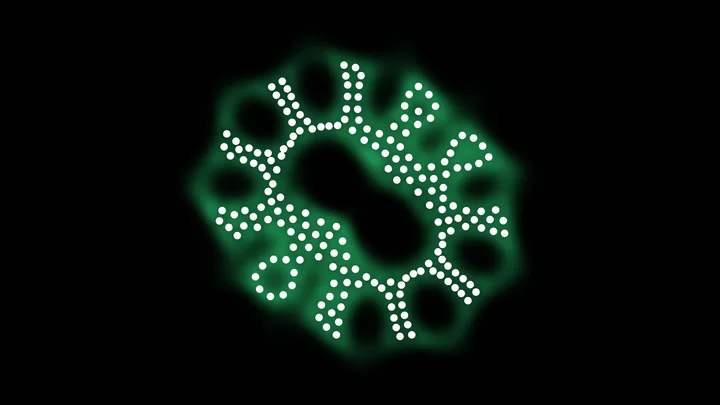
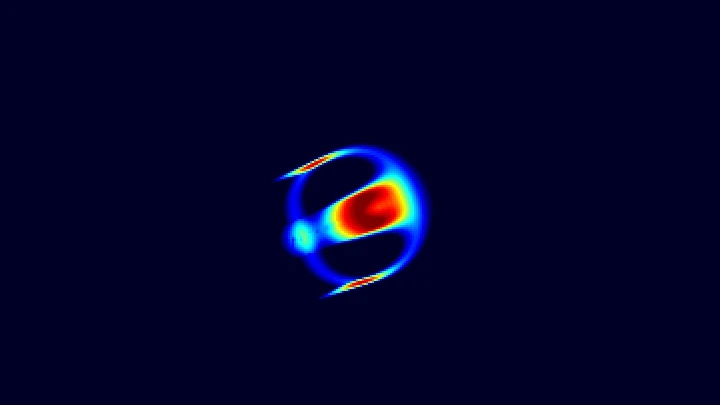
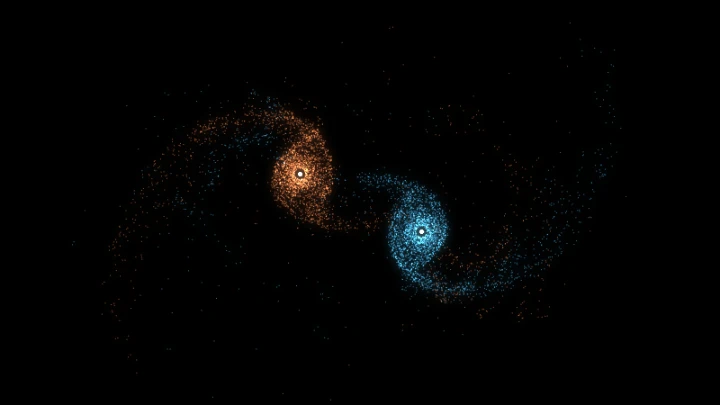
Watch colored particles that attract and repel each other organize into cells, worms and swarms that look alive. Edit the attraction matrix, play with the particles using the mouse, and download images, GIFs and videos.
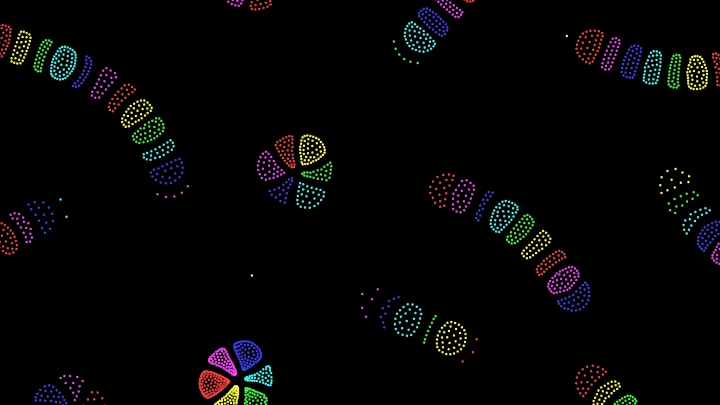
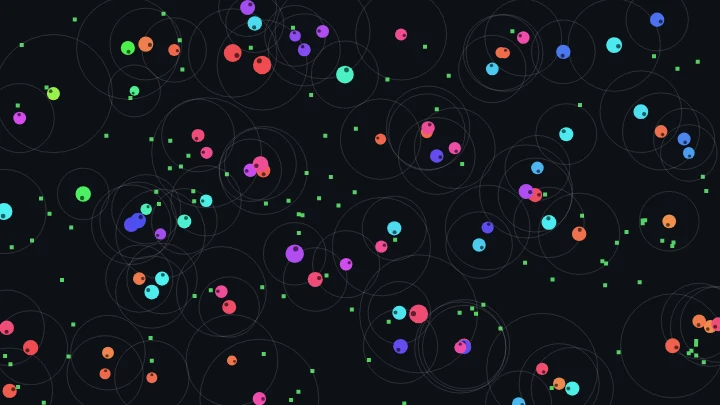
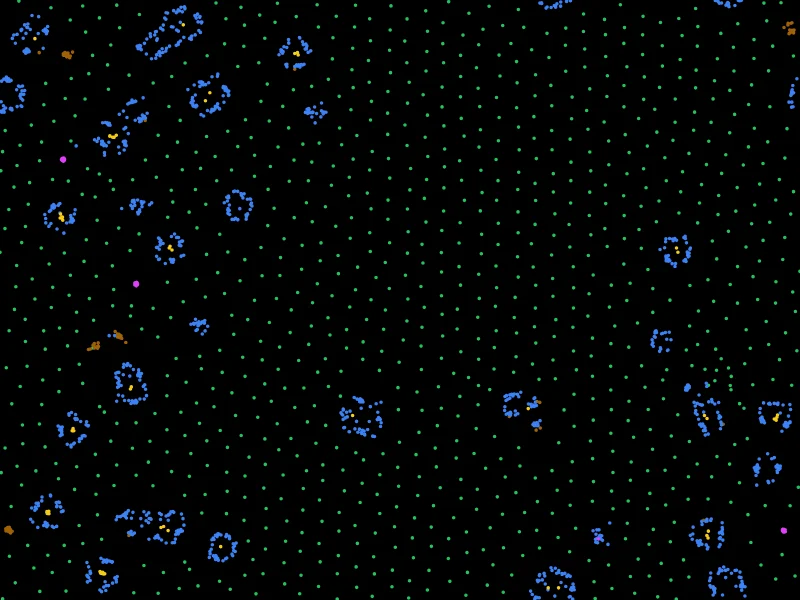
This is an online particle life simulation: thousands of colored particles move on the screen, and each color (each type) attracts or repels the other colors following a simple table, the attraction matrix. Nothing else is programmed, but the particles organize themselves into cells with a nucleus and a membrane, worms, chains, rotating flowers and swarms that hunt each other.
The trick is that the forces don't have to be mutual: red can be attracted by green while green runs away from red. These one-sided forces break Newton's third law (action and reaction), so the groups of particles can push themselves forward and keep moving forever, like living things.
Click and drag on a cell of the matrix to change how much one type likes another, or generate a new random matrix and discover new life forms. Change the number of types and particles, the interaction radius, the friction and the other physics settings while the simulation runs, and pull or push the particles with your mouse (or your finger) on the canvas.
You can download the current frame as a PNG image, or create an animated GIF or a WebM video of the simulation. Everything runs directly in your browser: nothing is uploaded to a server. You are free to share the generated images and videos anywhere. Attribution is not required but appreciated.
0 particles, 0 neighbors per particle, 0.0 ms per step
Examples
Each example below loads an attraction matrix and the settings that go with it. Click on any example to start it, and then change the matrix to see what happens.
Living cells
Six types with a random matrix. Some types gather into a nucleus, others wrap around it like a membrane, and the cells drift around, collide and exchange particles.
Hunting pairs
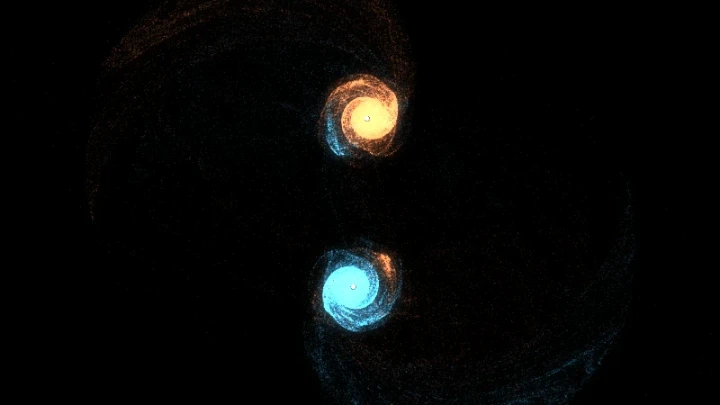
Each type is attracted a little by the next type, which is strongly pushed away by it. Two types pair up, and the hunter pushes its prey across the canvas: the pairs swim around and bump into each other.
Crawling chains
Each type is attracted by itself and by the two types next to it in the list, and pushed away by all the others. The particles line up in chains with the colors in order, which slowly crawl.
Segmented worms
Like the chains, but the neighbors in the list only attract each other a little. The chains break into short worms made of round segments.
Rosettes
Each type likes itself, likes its neighbors in the list a little and ignores the others. The particles build flowers with one petal per color.
Symmetric forces freeze
A random symmetric matrix: every type pulls the others exactly as much as it is pulled. Action equals reaction, so the energy can only be lost to the friction, and the particles soon stop in a still pattern.
Big bang
All the particles start squeezed in a small disk in the center, and every type likes itself and dislikes the others. The particles explode outwards and separate, like oil and water, into drops of a single color arranged in rings.
Light trails
The hunting pairs with neon colors, glowing particles and long trails, which draw the paths of the pairs as they swim.
How to create a particle life simulation
- Choose an attraction matrix - Start one of the examples, click "Random" for a random matrix, or choose a matrix generator and click "Generate".
- Edit the matrix (optional) - Drag up or down on a cell of the matrix, or scroll the mouse wheel on it, to change how much the type of the row is attracted (green) or pushed away (red) by the type of the column. The simulation changes immediately.
- Choose the particles (optional) - Change the number of types and of particles, and how they are placed at the start.
- Adjust the physics (optional) - Change the interaction radius, the repulsion distance, the force strength, the friction and the speed of the simulation.
- Play with the particles - Click and drag on the canvas to pull the particles towards the mouse, or push them away with the right mouse button. On a phone, drag with your finger.
- Customize the appearance (optional) - Choose the colors, the size and the shape of the particles, the glow, the trails and the background.
- Download the result - Download the current frame as a PNG image, or create an animated GIF or a WebM video.
Configuration parameters
Attraction matrix
| Field | Description |
|---|---|
| Attraction matrix | The table of the forces between the types. The value in row The value of row Drag up or down on a cell to change its value, or scroll the mouse wheel on it. A click selects the cell, so you can type its value or use the slider. |
| Force between the selected types | The curve of the force that a particle of the row type feels from a particle of the column type, by distance. Below the repulsion distance (beta) every pair of particles repels. Between beta and the interaction radius (rMax), the force follows the matrix, and is strongest halfway. Farther than rMax there is no force. |
| Matrix generator | Creates a whole new matrix:
The "Random" button is a shortcut for the random generator. The types are in the order of the matrix, and the last type is followed by the first one. |
| Make symmetric | Copies the upper half of the matrix to the lower half, so the force between two types is the same in both directions. |
| Invert | Changes the sign of every value: the attractions become repulsions and the other way around. |
| Transpose | Swaps the rows and the columns: if red chased green, green now chases red. |
| Matrix as text | The matrix written as text, with one row per line. Copy it to save a matrix you like, or paste a matrix and click "Apply the text". The number of rows sets the number of types. |
Particles
| Field | Description |
|---|---|
| Number of types (colors) | The number of kinds of particles, from 1 to 16. Each type has its own color and its own row and column in the attraction matrix. When the number changes, the values of the remaining types are kept and the new types get random values. |
| Number of particles | The total number of particles, split equally between the types. The cost of the simulation depends on the number of particles and on how many neighbors each particle has inside the interaction radius. More particles in the same canvas also means more neighbors, so doubling the particles makes each step about four times slower. A typical computer runs a few thousand particles smoothly. |
| Initial positions | Where the particles are placed at the start: randomly everywhere, in a disk, squeezed in a small disk in the center, in a ring, in a spiral with one arm per type, in stripes with one stripe per type, or in slices of a disk with one slice per type. |
| Random seed | The positions of the particles are random. The same seed always places them at the same positions, so with the same matrix and settings the simulation is the same. Click the dice button to try a new random seed. |
| Place the particles again | Restarts the simulation from the initial positions, with the current matrix. |
Physics
| Field | Description |
|---|---|
| Interaction radius (rMax) | The distance, in pixels, where the forces end. Particles farther apart don't feel each other at all. A larger radius gives larger structures, and more neighbors per particle, which makes the simulation slower. |
| Repulsion distance (beta) | Below this distance, as a fraction of the interaction radius, every particle pushes every other particle away, whatever their types. It keeps the particles from collapsing into a single point, and sets how tightly they pack. With a radius of 70 and beta 0.3, the repulsion acts below 21 pixels. |
| Force strength | Multiplies every force. Stronger forces make everything move faster, and very strong forces make the dense groups of particles shake. |
| Friction half-life | The time it takes for a particle that feels no force to lose half of its speed. Smaller values mean more friction, and the particles stop faster. With 0, the particles keep no speed at all from one step to the next. |
| Time step | The amount of simulated time advanced on every step. Smaller values are more accurate, but slower. If the dense groups shake too much, reduce the time step or the force strength. |
| Steps per frame (speed) | The number of steps computed on every animation frame. Increase it to make the simulation faster. With 0 the particles are frozen, but you can still edit the matrix and the appearance. |
| Wrap around the edges | If enabled, the particles that leave the canvas come back on the other side, and the particles near opposite edges feel each other, as if the canvas were the surface of a donut (a torus). If disabled, the edges are walls and the particles bounce on them. |
Mouse
| Field | Description |
|---|---|
| Click and drag on the canvas to | What happens when you click and drag on the canvas (or touch it on a phone): pull the particles towards the mouse, push them away, or nothing. The right mouse button always does the opposite of the left button. |
| Radius | The distance, in pixels, reached by the force of the mouse. The force is strongest at the mouse and fades to 0 at the radius. |
| Strength | The strength of the force of the mouse, compared to the force between two particles. |
Appearance
| Field | Description |
|---|---|
| Colors | The palette of the types: rainbow, pastel, neon, sunset, ocean or fire. The colors of the types are also shown in the attraction matrix. |
| Particle size | The diameter of each particle, in pixels. It only changes the drawing, not the physics. |
| Shape | Draws the particles as circles or as squares. |
| Add the light of the particles (glow) | If enabled, the colors of overlapping particles are added together, so the dense groups of particles glow brighter. |
| Trails | How much of the previous frame remains visible, from 0 (no trails) to 0.99 (very long trails). The trails show the paths of the particles. |
| Transparent background | If this option is checked, the canvas and the downloaded PNG image have a transparent background. GIFs and videos have no transparency, so they always use the background color. |
| Background color | The background color, in hexadecimal value. For example, use #000000 for a black background. |
Canvas size
| Field | Description |
|---|---|
| Resolution | The canvas width and height, in pixels. You can select an option from the list of common display resolutions, or use "custom" to choose any width and height. |
| Width and height | The size of the canvas, which is also the size of the world where the particles move. When it changes, the particles keep their relative positions. A larger canvas with the same particles makes them more spread out. |
Animation control
| Button or value | Description |
|---|---|
| Start, Restart | Start the simulation from the initial positions. |
| Pause, Resume, Stop | Pause, resume or stop the simulation. You can still edit the matrix and the appearance while it is paused. |
| One step | Pauses the simulation and advances it a single step. |
| Neighbors per particle | The average number of other particles inside the interaction radius of each particle, which is the number of forces computed for it. |
| Distances computed per particle | The number of particles whose distance was checked for each particle. Only the particles of the nearby cells of a grid are checked, instead of all of them. |
| Physics time per step | The time your computer took to compute the forces and move the particles, on each step. |
| Download current animation frame | Download the current frame (in PNG format). |
| Reset all the options | Restore every option and the matrix to their default values, and restart the simulation. |
Animated GIF and video
| Field | Description |
|---|---|
| Format | An animated GIF, which plays everywhere, or a WebM video, which is smaller and has better colors. The animation starts from the current state of the particles. |
| Number of frames | The number of frames of the animation, up to 3000. |
| Steps per frame | The number of simulation steps between two frames. Higher values give a faster animation in fewer frames. |
| Frames per second | The speed at which the frames are played. |
How particle life works
Particle life is a kind of artificial life simulation. It became popular through the "Clusters" of Jeffrey Ventrella, and through the open source simulations and videos of Tom Mohr and Hunar Ahmad. It is surprisingly simple. On every step, for every particle, the simulation:
- Finds the neighbors - All the particles closer than the interaction radius rMax. To avoid measuring the distance to every particle, the canvas is divided into a grid of cells as wide as rMax, and only the particles of the same cell and of the 8 cells around it are checked.
- Adds the forces - Each neighbor pushes the particle away if it is closer than
beta·rMax. Farther than that, it attracts or repels the particle with the value of the attraction matrix for the two types, with a force that grows from 0 to its maximum halfway to rMax, and back to 0 at rMax. - Applies the friction - The speed of the particle is reduced, so it loses half of its speed every friction half-life.
- Moves the particle - The force changes the velocity, and the velocity changes the position.
With r the distance divided by rMax and a the value of the matrix, the force is r / beta - 1 below beta, and a · (1 - |2r - 1 - beta| / (1 - beta)) between beta and 1. The curve under the matrix editor draws it for the selected cell.
In real physics, forces always come in pairs: if A pulls B, B pulls A with the same strength in the opposite direction (Newton's third law). Then the total momentum of the particles never changes, and with friction, a group of particles can only slow down and stop. The random symmetric matrix behaves like that: after a while, every particle stands still.
An asymmetric matrix breaks this rule. When red is attracted by green but green is pushed away by red, a red and green pair keeps accelerating: red runs after green, and green runs away from red. Groups made of several types can then move by themselves, turn, chase other groups and keep their shape, like microscopic organisms. This is why such simple rules create structures that look so much like life: the energy constantly injected by the one-sided forces is balanced by the friction, which keeps the system out of equilibrium, just like living things.
Frequently Asked Questions (FAQ)
What is particle life?It is a simulation where particles of several types attract or repel each other with forces that depend only on their types and their distance. A table called the attraction matrix says how much each type likes or dislikes each other type. From these simple rules, the particles organize themselves into cells, worms and other structures that move like living things.
Who invented particle life?Jeffrey Ventrella created the "Clusters" simulation, an early version of the idea. Tom Mohr made the name "particle life" popular with his open source simulation, and the videos of Hunar Ahmad made it famous. Many variants exist, and the same idea is also called "primordial soup" or "artificial life simulation".
Why do the particles move forever?Because the forces are not mutual: a particle can be attracted by another one that is pushed away by it. This breaks Newton's third law, so a group of particles can push itself forward. The friction removes energy, but the one-sided forces keep adding it, so the movement never stops. With a symmetric matrix, the particles stop after a while.
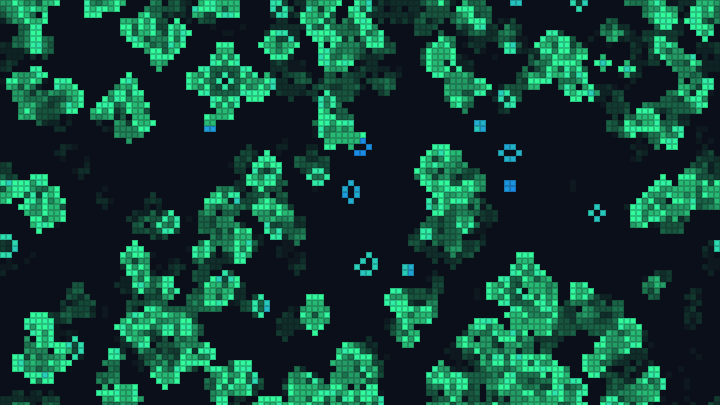
How is particle life related to Lenia and the Game of Life?They are all artificial life simulations where lifelike behavior emerges from simple local rules. The Game of Life and Lenia are cellular automata, computed on a grid of cells, while particle life moves free particles, like a physics simulation. In all of them, nothing describes the creatures directly: they appear by themselves.
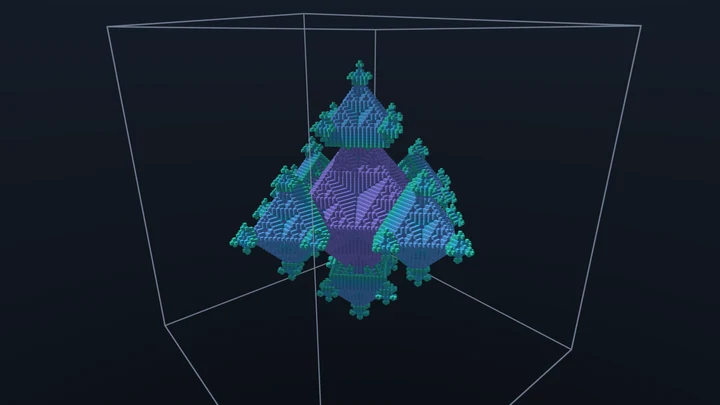
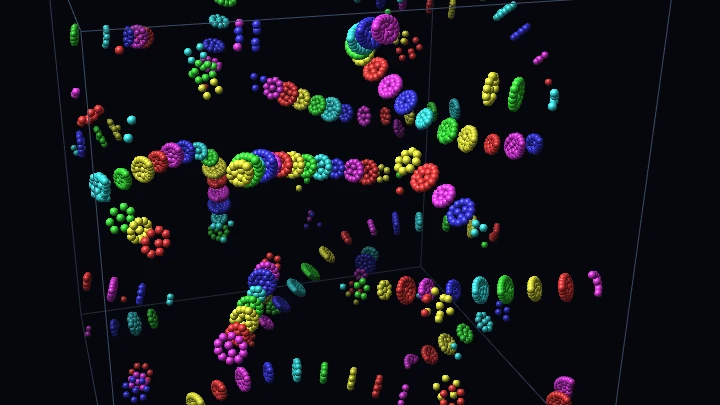
Is there a 3D version?Yes: the 3D Particle Life runs the same rules in a box, where the cells become balls and the chains twist in space. Copy the "Matrix as text" here and paste it there to see what your matrix builds in 3D.
How do I find interesting matrices?Click "Random" many times: most random matrices create something interesting within a few seconds. When you find one you like, copy the "Matrix as text" to keep it. Then change one cell at a time and watch how the creatures change. Symmetric matrices freeze, matrices with many negative values make a gas of particles, and matrices with many positive values make big blobs.
Why do some groups of particles shake?When many particles attract each other, they pile up in dense groups where each particle feels hundreds of forces at once. The simulation moves in small time steps, and in such dense groups a step can overshoot, which makes the particles jitter. Reduce the time step or the force strength, or use fewer particles, to calm them down.
How many particles can I simulate?Up to 30,000, but the speed depends mostly on the number of neighbors of each particle. A typical computer runs a few thousand particles smoothly. If the animation becomes slow, use fewer particles or a smaller interaction radius, or create a video, which always keeps the chosen framerate.
Is my simulation uploaded to a server?No. Everything runs in your browser, on the HTML canvas. Nothing is uploaded, and the images, GIFs and videos you download are generated on your own computer.
Can I use the generated images and videos?Yes. You are free to use and share the generated images and videos on YouTube, TikTok, or any other social media or website. Attribution is not required but appreciated.
Related tools